
Two people can work in the same Word document when it is stored in a supported shared location and both have the right access. If Word says the file is locked, first confirm that everyone is opening the same shared document.
Start with one shared document
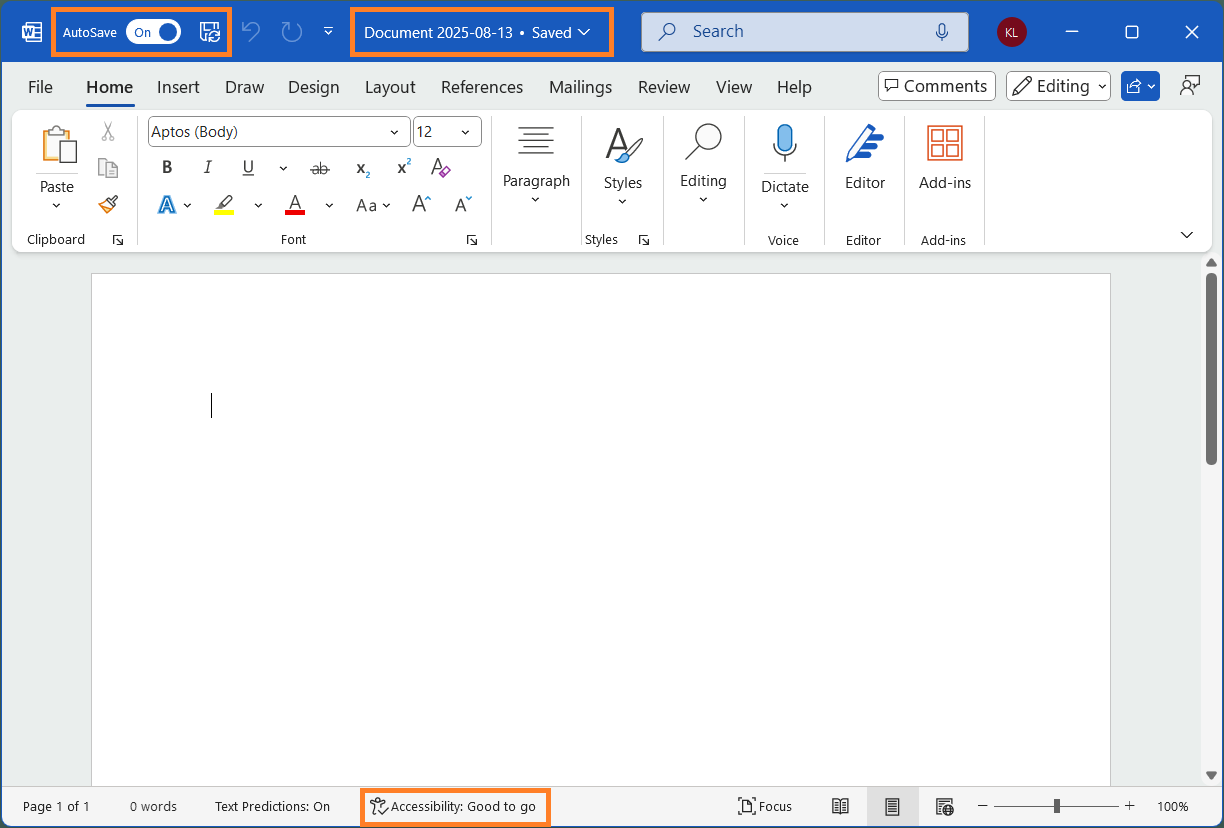
For a straightforward Microsoft 365 workflow, use a .docx file stored in OneDrive or SharePoint Online and share a link with edit access. An attachment downloaded from an email is a separate copy; changes in that copy will not automatically appear in the shared original.
Microsoft source · Used with permission from Microsoft. · View full size
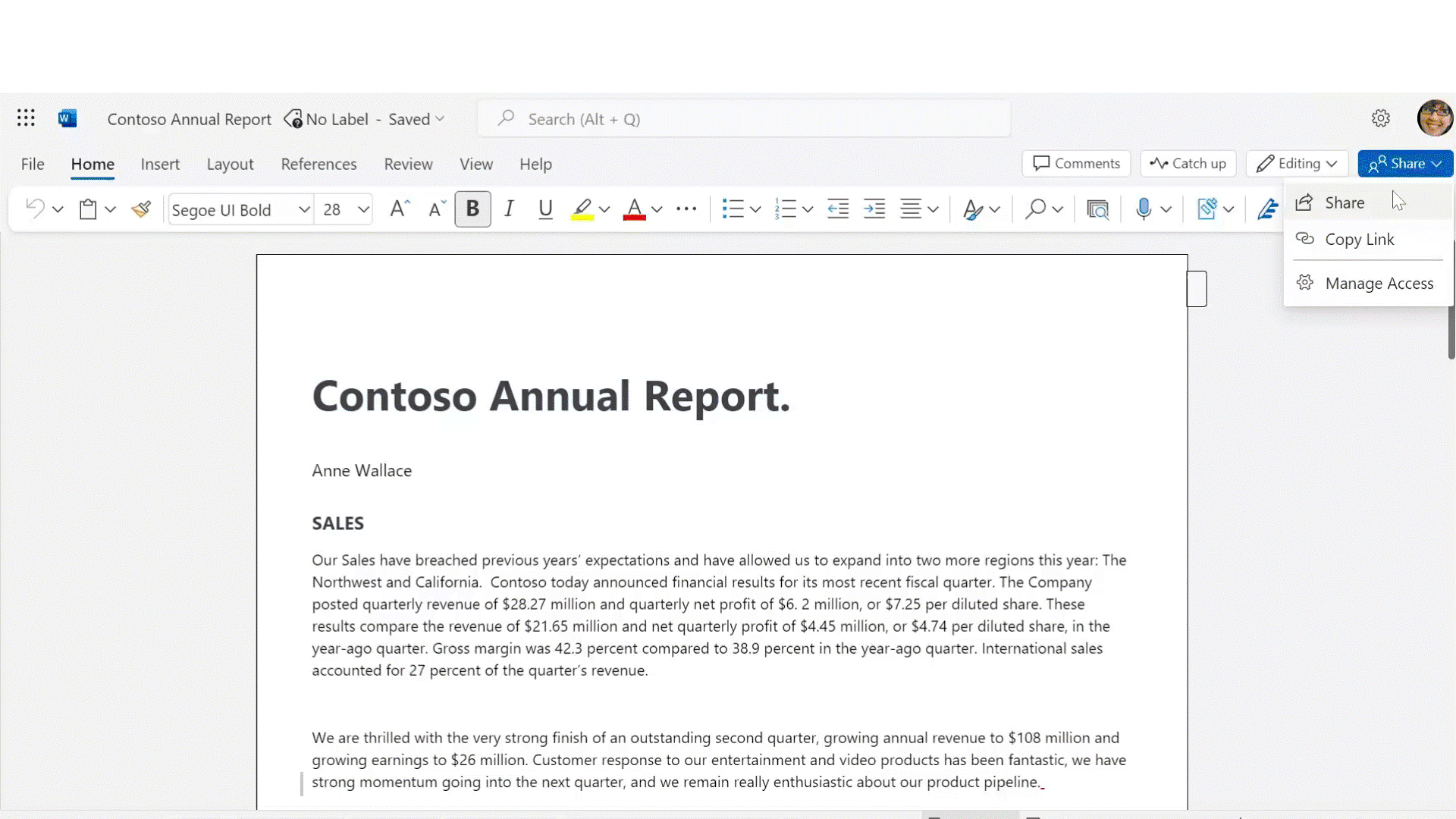
Ask each colleague to open the agreed link. Check the file name and location, and confirm that the invitation was sent to the account they are using. A view-only permission will not let someone join the editing. If you are preparing the link, our OneDrive and SharePoint sharing guide explains how to review the recipient and permission.
Microsoft source · Used with permission from Microsoft. · View full size
Check whether the app supports the workflow
Current supported desktop Word and Word for the web can both support coauthoring. Opening a file in desktop Word does not automatically mean it must be locked to everyone else. Older or unsupported applications can behave differently.
If your organisation permits it and the document is supported, opening the same link in Word for the web can help identify an application-specific issue. It is a comparison, not permission to move confidential material to a different service or account.
Read the exact lock message
A paragraph temporarily reserved while a colleague edits it is different from an entire file being locked. Record the message and, if it names someone, check with that person whether they still have the document open.
If they are finished, ask them to save and close their session normally. Avoid forcing applications closed or deleting lock files while someone may have unsaved changes. If the message remains after the users have finished, ask your IT support team to investigate the lock and sync state. Provide the exact message, file location and Word version, with private information removed from any screenshot.
Leave protection and checkout rules in place
Coauthoring can be affected by checkout requirements, password protection, Mark as Final, some encryption or sensitivity-label configurations, and organisational restrictions. Certain document features can also interfere.
These controls may be deliberate. Do not remove a password, change a sensitivity label or alter a SharePoint library rule simply to make the lock disappear. Ask the document owner or administrator to confirm the intended way to collaborate.
Keep a clear record of any fallback copy
Illustrative example: two colleagues are updating a proposal. One uses the shared .docx link; the other opens yesterday’s email attachment. Agreeing on the shared file resolves the version confusion, but it does not prove that every lock has that cause.
If an urgent task requires a separate copy, name it clearly and agree who will reconcile the changes into the original. Offline edits also need care: others cannot see them until they synchronise, and overlapping changes may need review. Our OneDrive status-icon guide for Windows explains local file availability and sync warnings. A small amount of coordination is safer than ending up with several files all called final.