
An email says someone has shared a file with you. You recognise the sender. There is a file tile and an Open button, and it looks like the SharePoint notifications you receive at work. Should you open it?
The notification can be genuine and the shared content can still be unsafe. Attackers can misuse real SharePoint sharing, including through a compromised account. You are not simply trying to spot a badly copied Microsoft email. You need to check whether this specific file was intentionally shared with you for a legitimate reason.
If the file is unexpected or you are unsure, leave it unopened and call the sender on a number you already trust. Ask about the exact file. If you cannot verify it, report it through your usual IT process. If you have already opened it or signed in, use the response steps below.
This is the kind of sharing email you may see
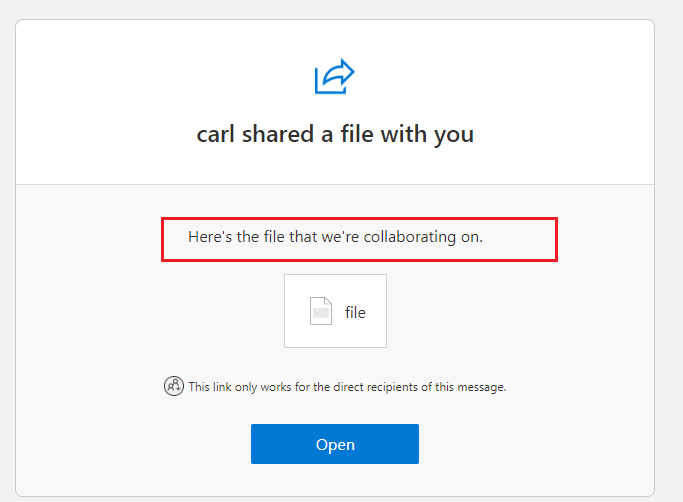
The screenshot is a genuine example of the notification format, not an example of a scam. A similar-looking email may be legitimate or may lead to content shared by an attacker. Matching the logo, layout or button is not a safety test.
Received one? Check the request before the link
1. Were you expecting this particular file?
Think about the work, not just the sender’s name. Did you discuss this document? Does its name and purpose fit what you are doing together? A familiar supplier unexpectedly sending a vague “document for review” still needs checking.
An expected file has useful context, but that is not a guarantee. Pause if the timing, purpose or requested action does not fit. Do not click Open just to find out what an unexplained file is.
2. Confirm the exact file through a separate known contact
Call using an existing contact or established business record, or speak to the person in person. Do not use a new number supplied in the sharing email.
For example, ask: “Did you share a file called Project Review with me today, and what is it for?” Use the actual filename in your check. The point is to confirm the specific share, not merely that you know the person.
Do not rely on a reply to the same email. In a January 2026 campaign, Microsoft observed attackers answering recipients who questioned the message. The compromised mailbox could be answering your “Is this really you?” check.
3. Choose the next step from what you learn
- The sender confirms the specific file and purpose: use your normal approved access route. Start from your usual app or bookmark where possible. For an external share that does not appear there, ask the sender or IT for a verified route. Its absence from your own files does not prove fraud.
- You cannot confirm it, or the explanation still does not fit: leave it unopened and report it through your workplace’s established IT or phishing-reporting process. A deadline is not a reason to guess.
- The sender says they did not share it: do not open it. Tell your IT team and let the sender know through that trusted contact route, so their own support team can investigate.
Do not forward the email around for colleagues to try. Keep the printable SharePoint and file-sharing phishing checklist beside your desk for this decision.
How a real notification can lead to a harmful file
Microsoft has documented attackers abusing genuine file-hosting services. A compromised account shares a file, and the service sends its normal notification. The recipient may pass a real access check before seeing a document that contains a malicious follow-on link.
That means a genuine Microsoft notification, a Microsoft-hosted first link or a real verification code is not an all-clear for what comes next. A shared document does not become trustworthy merely because SharePoint hosts it.
Legitimate external sharing can require sign-in or an emailed code, so those steps alone do not prove a scam. If the access process is unexpected or unclear, stop and check with IT rather than guessing which prompt is safe. Never approve an MFA request you did not initiate.
Even after you verify the share, stop if the document unexpectedly asks you to follow another link, scan a QR code, sign in again, install a viewer, enable macros, change security settings or paste a command. Verify the new request separately. Confirmation of one file is not permission for every action inside it.
A sign-in trap and a malicious download are different risks
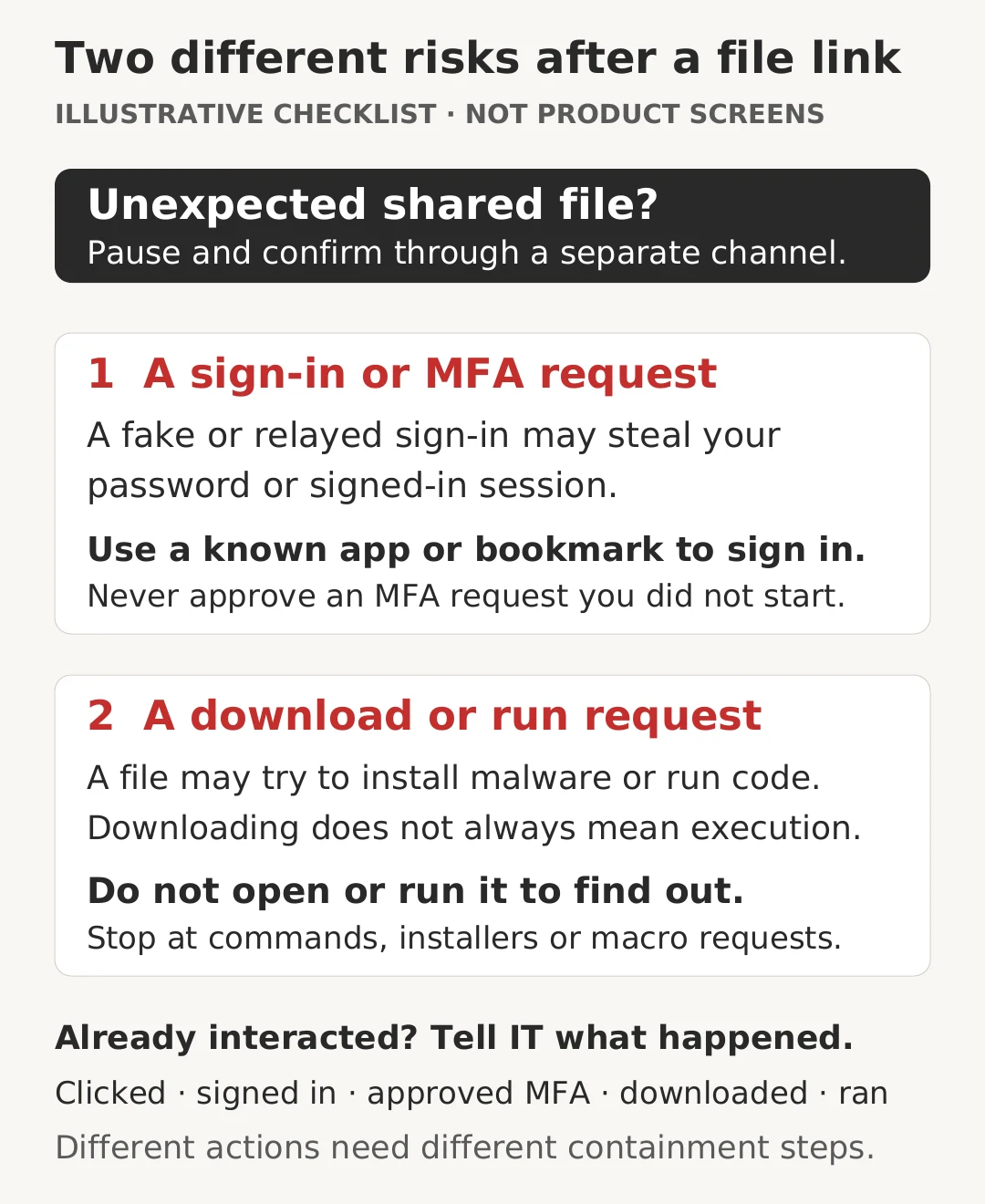
A sign-in trap can steal account access
A fake sign-in page may collect your password. More advanced phishing can relay a sign-in and steal the resulting session even after MFA. You do not have to install an application for your account to be at risk.
Use a known app or bookmark when you need to sign in, and never approve an unexpected MFA request. Keep MFA enabled. Ask IT about phishing-resistant sign-in options rather than turning protection off to get past a problem.
A download or fake fix can target the device
Some lures ask you to open or run a file, install a viewer or paste a command to fix an error. Microsoft’s ClickFix research describes fake errors and human-verification prompts that persuade people to run malicious commands. An unexpected document should not send you into a terminal to prove you are human.
Downloading a file does not always mean it has run. That is not a reason to open it to find out. Nor does the absence of an obvious installation prove that everything is safe. Stop and let IT assess the file and device.
Already opened it, signed in or downloaded something?
Report promptly, even if you feel unsure or embarrassed. Tell IT the approximate time, which device and account you used, and whether you clicked, entered details, approved MFA, downloaded a file or ran something. Do not reopen the page to collect more evidence.
- Only clicked or viewed the page: stop interacting, close it and report what appeared. Mention any automatic download. A click alone does not establish whether an account or device was compromised.
- Downloaded but did not open or run it: leave the file unopened and tell IT. Do not test it yourself.
- Entered a password or code, or approved unexpected MFA: contact IT immediately. Use the official service for account recovery, not the email link. IT may need to reset credentials, revoke affected sessions and check authentication methods and mailbox rules; changing a password alone may not remove access.
- Ran a file or command, enabled active content or installed software: stop using the device and contact IT immediately. If it may be infected, disconnect it from networks. Use a separate trusted device for recovery rather than entering new passwords on the suspect computer. Let IT direct containment and recovery.
The Australian Cyber Security Centre’s account-compromise recovery guidance and malware guidance explain the different checks. For a work account or computer, involve your IT team instead of attempting a device reset or wipe on your own.
Make safe file sharing easier for your team
When sending a legitimate document, explain what it is and why you are sharing it. Our guide to sharing OneDrive and SharePoint files with a client covers named-recipient access and checking permissions.
Practise the pause-and-call habit before a real incident. Osmicro’s cyber security awareness training can help staff recognise suspicious requests and know how to report them. Keep the one-page file-sharing checklist available for a quick reminder.
Sources checked: 21 October 2026. This is general prevention and response guidance, not a report of an Osmicro customer incident. The sharing-email screenshot is a dated Microsoft-hosted example; the other visuals are original illustrations.