
A colleague calls about a strange email you apparently sent. Or expected messages disappear, your password stops working, and your account shows activity you cannot explain. These are reasons to act promptly, but none proves on its own that someone has taken over your email.
The immediate goal is to regain control safely and find out what changed. For a work account, contact your known IT support team through an established phone number or reporting channel. Do not wait until you can prove there has been a breach.
Look for changes you did not make
The Australian Cyber Security Centre’s account-recovery guide lists warning signs including unfamiliar sent or deleted messages, changed recovery details, unexpected password-reset notices and missing incoming mail. A contact receiving an unusual request from you is another useful clue.
Look at the pattern rather than one symptom. A forgotten password, a legitimate settings change or a lookalike sender can produce confusion without someone accessing your mailbox. Tell IT exactly what you observed, rather than diagnosing the cause yourself.
Account activity also needs context. Google explains that device activity can show multiple sessions for one device, background syncing can update activity times, and a location may be nearby rather than exact. An unfamiliar entry deserves checking, not an assumption about who is responsible.
Equally, being able to sign in does not establish that you are the only person with access. Do not dismiss reports from colleagues just because your inbox still opens normally.
Start recovery through a route you trust
Leave unexpected “secure your account” links alone. Open the provider’s official app, use an existing bookmark or type the known website address yourself. If an alert could be fake, review security activity from that trusted starting point instead of following the alert.
- Work or school account: call your established IT contact. The organisation may need to restrict access while investigating. Consumer recovery forms may not apply to a managed account.
- Personal Google account: follow Google’s compromised-account instructions, including its recovery route if you cannot sign in.
- Personal Microsoft account: use Microsoft’s hacked-account recovery guidance. It separates recovering access from checking the account afterwards.
If the device might be infected, do not enter replacement passwords on it. Use a separate trusted device and let IT assess the suspect computer. Tell support if you recently installed something, ran a command or allowed remote access.
Check more than the password
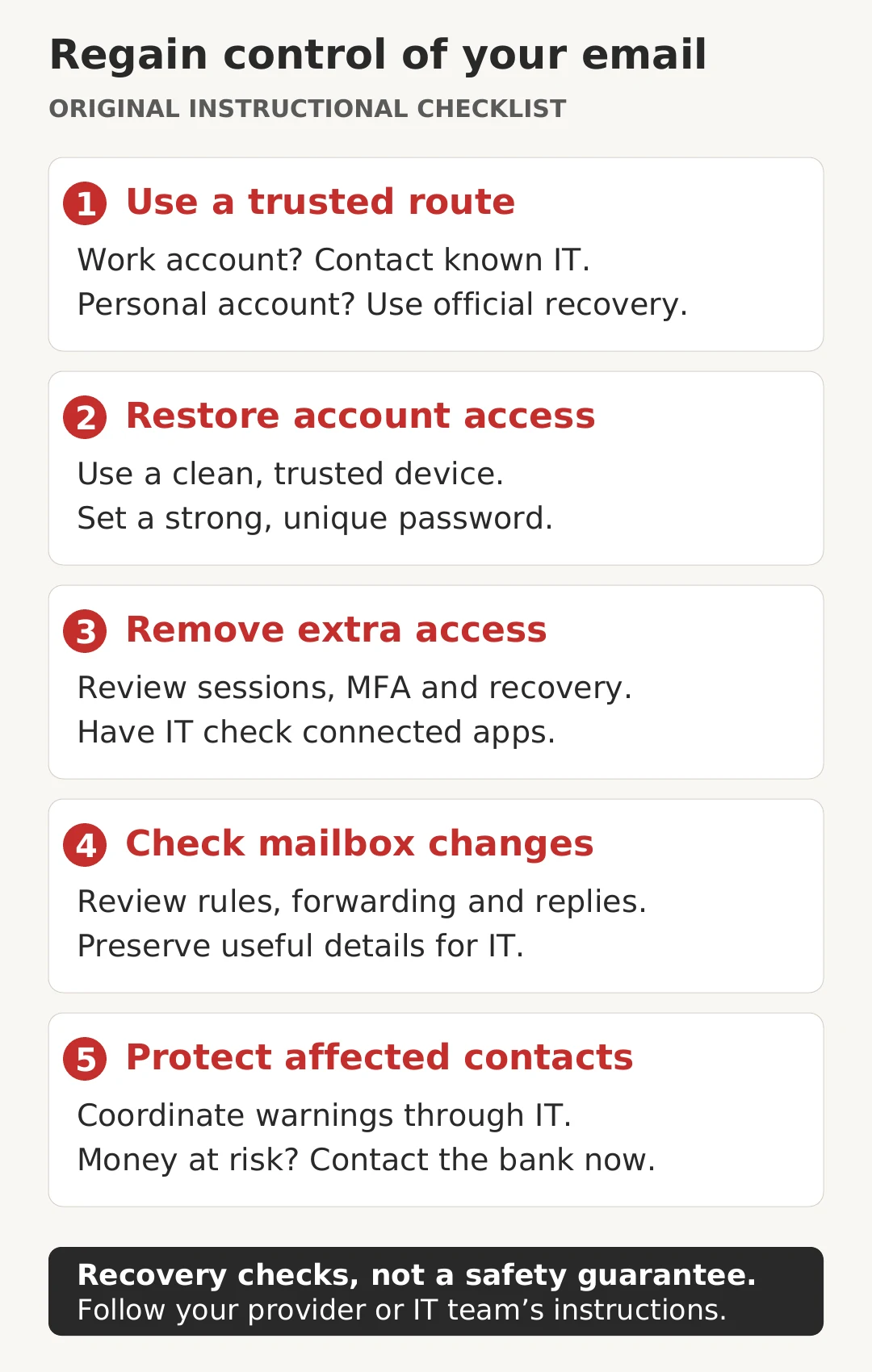
A new password is important, but recovery should not stop there. Microsoft’s business-account response guidance includes reviewing authentication methods, application permissions and mailbox changes, as well as revoking access. Ask your IT team to cover each relevant area:
- Credentials and sessions. Set a strong, unique password through the official recovery process. Review signed-in devices and end unrecognised sessions. For a managed account, let IT revoke affected sessions and confirm what further containment is needed.
- Recovery and MFA methods. Check that recovery addresses, phone numbers and authentication methods belong to you. Report unfamiliar additions. Enable multi-factor authentication if it is available and not already on; otherwise keep it enabled. Follow the provider’s process for restoring trusted methods, and coordinate managed-account changes with IT.
- Connected applications. Check applications authorised to access the account. An unfamiliar app may need its permission removed, not just a password change. IT should distinguish unauthorised access from legitimate business integrations.
- Mailbox behaviour. Check forwarding, inbox rules, automatic replies and signatures. A rule can hide or redirect messages. Have IT record suspicious settings before removing them, and investigate changes you cannot explain.
Microsoft’s January 2026 investigation of a SharePoint-related campaign illustrates why these checks matter: attackers created rules to conceal messages and used compromised accounts to approach other people. Password resets alone were not sufficient remediation in that campaign.
Also review other accounts that reused the affected password or rely on this mailbox for password recovery. Change reused passwords through each service’s trusted recovery route, using a trusted device; ask IT to coordinate work accounts.
Protect people connected to the mailbox
Write down when you noticed the problem, the affected account, what looked wrong and the steps already taken. Do not put passwords or verification codes in an incident note. Keep the original messages for IT’s approved collection process rather than forwarding suspicious links around.
The ACSC’s business email recovery guidance recommends warning affected contacts. For a workplace incident, coordinate this with IT and the responsible manager: they should decide the audience, verified facts and safe communication channel. Avoid sending an improvised warning from a mailbox that may still be controlled by someone else.
If payment details may have been exposed or a payment diverted, contact the bank immediately through its official app or a number you already trust. Do not wait for the technical investigation to finish. Scamwatch also warns about follow-up recovery scams, including offers to retrieve lost money.
Make the next incident easier to report
After recovery, agree who will review further alerts and confirm when normal use can resume. Keep a support number available outside the affected mailbox.
Osmicro’s cyber security awareness training helps teams recognise suspicious requests and report them. To recognise a common route into account theft, read our guide to checking a SharePoint file from a familiar sender. A known name does not make every sign-in request safe.
Sources checked: 30 October 2026. General guidance for staff and small businesses; provider settings and organisational response processes vary. This is not a report of an Osmicro customer incident.