
Your calendar says 9 am. The organiser says 10 am. Before moving the appointment or adjusting your computer clock, check whether those two times describe the same meeting.
Start with one dated occurrence, not the whole recurring series. Write down the time you expected, the city that expectation refers to and the time your calendar actually shows. “Thursday at 10, Sydney time” is more useful than “10 am Australian time”.

Different clock times can be correct
Outlook stores calendar start and end times in UTC and presents them in the viewer’s configured time zone. Different local times can therefore point to the same instant. Microsoft explains how Outlook handles time zones.
Fictional example: a weekly meeting is intended to remain at 10 am Sydney time. On Thursday 1 October 2026, that is also 10 am in Brisbane. On Thursday 8 October, 10 am in Sydney is 9 am in Brisbane. The same difference applies on Thursday 29 October.
NSW began daylight saving on Sunday 4 October 2026; Queensland does not observe it. These are date-specific examples, not a year-round conversion rule. Check the NSW Government’s daylight-saving dates.
The useful question for the organiser is: which city’s working time should stay fixed? If the answer is Sydney, the Brisbane attendee’s clock time can legitimately change after Sydney’s daylight-saving transition.
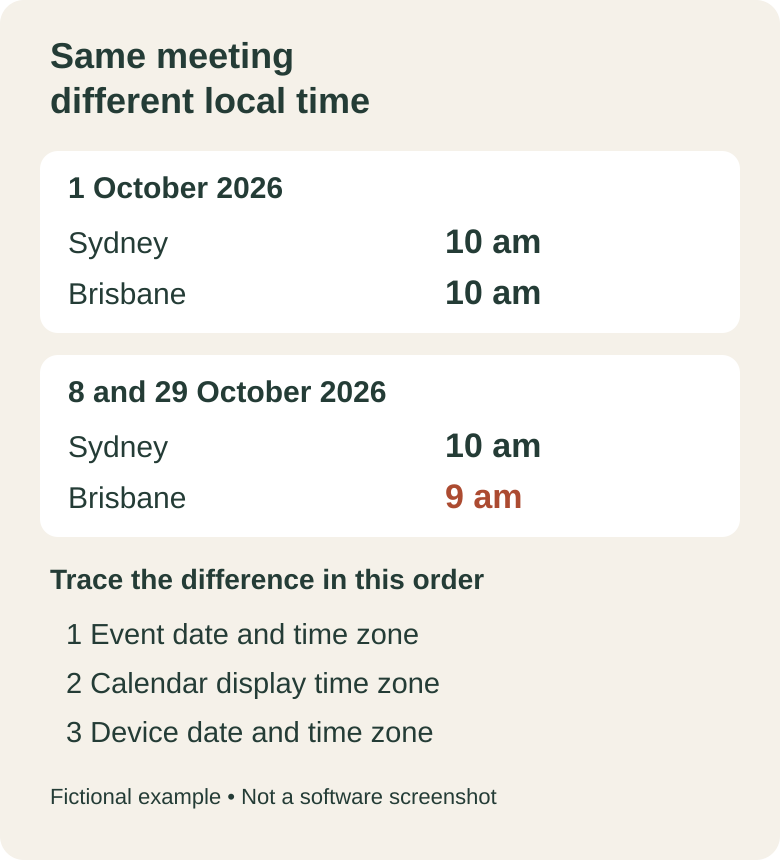
Check three separate places
1. The event
Open the affected occurrence and ask the organiser to confirm its intended date, start time and time zone. Check whether an exception was made for that particular week. A copied line in an email saying “10 am” is not enough to establish what the calendar invitation was meant to represent.
2. The calendar display
For new Outlook and Outlook on the web, Microsoft’s current route is Settings → Calendar → View. Inspect the calendar’s selected time zone. Adding a second city’s time zone can make comparisons easier without changing the meeting. Use the correct instructions for your Outlook version; classic Outlook has a different settings layout. Follow Microsoft’s version-specific time-zone guidance.
3. The device
In Windows 11, inspect Settings → Time & language → Date & time. Check the clock, selected time zone and automatic settings separately. Microsoft documents distinct controls for automatic time, automatic zone selection and daylight saving. See Windows date and time settings.
Do not manually shift the computer clock just to make one invitation look right. If a work device’s settings are managed, or several apps disagree, give your IT team the evidence rather than bypassing the policy. Compare the same account and occurrence in Outlook on the web and the desktop app; record the result before making changes.
Correct the smallest thing that is wrong
If you were invited by someone else, ask the organiser to correct an erroneous meeting. In classic Outlook, moving another person’s meeting on your own calendar does not notify the organiser and can leave your copy at the wrong time.
If you are the organiser, distinguish a one-off exception from a recurring-series correction. New Outlook offers separate choices for one event, the series, or this and following events. Classic Outlook distinguishes the single occurrence from the series. Read the scope before saving or sending an update. Microsoft’s meeting-editing instructions explain these choices.
Do not move an entire series merely because one attendee’s display changed after daylight saving. Agree on the intended time first, then send the necessary organiser update.
Verify before calling it fixed
Reopen the affected occurrence after the update. Ask one attendee in the other city to check it too. Compare the date, local time and named city—not whether both screens show the same hour. For recurring meetings, inspect a later occurrence as well.
If it still differs, provide the organiser or Osmicro’s IT support team with:
- The exact occurrence date and expected city/time.
- Which calendar account and app show the mismatch.
- Whether the browser and desktop views agree.
- Whether it affects one occurrence, the series or unrelated meetings.
- A cropped screenshot with private subjects, attendee details and unrelated appointments removed.
Meeting documents are a separate preparation check: our guide to sharing a OneDrive or SharePoint file with a client explains how to give the intended person access without opening the file to everyone.
Sources checked 29 October 2026 AEDT. Fictional example; no customer calendar or live account test used.