
You remember the email, but Outlook search will not show it. Before rebuilding an index or replacing a profile, check what Outlook is actually searching. The message may be in another account, outside the selected folder or excluded by a filter.
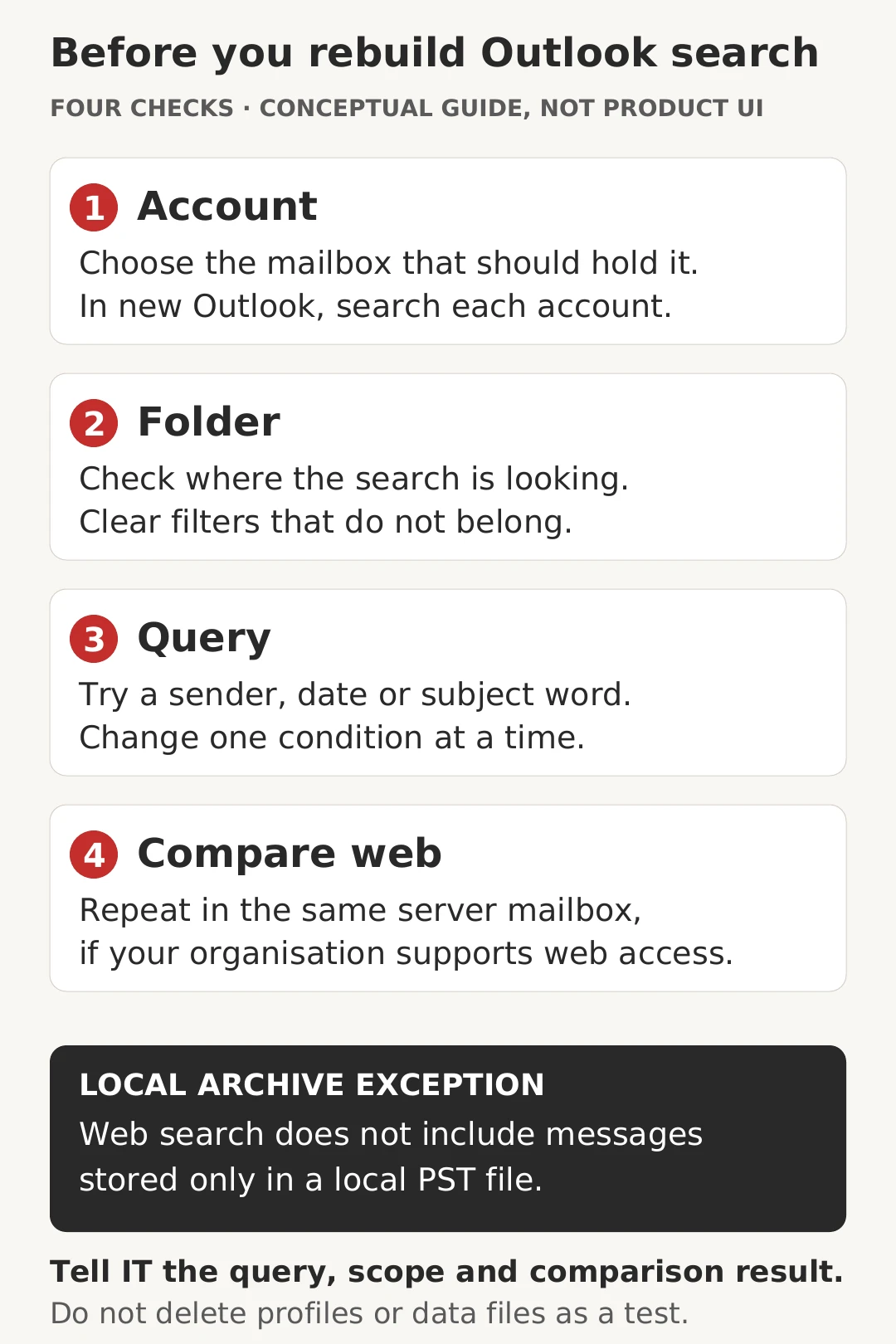
Start with four checks: the correct account, the correct folder, a focused query and, where available, a comparison with the same mailbox on the web. Keep a note of each result. A controlled comparison gives IT more useful evidence than several repairs tried at once.
First, identify which Outlook you use
This walkthrough focuses on new Outlook and classic Outlook for Windows. Their search controls and troubleshooting paths differ. Outlook on the web is another useful comparison, but it is not a view of every local file on your computer.
Microsoft’s search troubleshooting guide separates new and classic Outlook. In new Outlook, search preferences are under Settings > General > Search. Classic Outlook uses its Search ribbon and related options. If a guide does not match your screen, check the version before following repair instructions.
1. Check the account before the words
Look at the mailbox selected in the folder list. Was the message sent to your own work address, another account or a shared mailbox? Start in the account that should contain it.
Microsoft currently advises searching each account separately in new Outlook, using All Folders within that account. Do not assume one search covers every account added to the app. In classic Outlook, the available scope choices can include Current Mailbox and All Mailboxes.
For a shared mailbox, tell IT its name and whether you can browse its folders. A result from your personal mailbox does not establish what is searchable in a shared one.
2. Check the folder and active filters
Search scope means where Outlook looks. A search restricted to the current folder may not find mail filed elsewhere. Check the folder selector before changing the query.
- If you know the folder, select it and try a simple search there.
- If you do not, expand to the appropriate mailbox or all folders in that account.
- Check whether a date, sender, unread or attachment filter is still active.
- Browse likely folders directly, including Sent Items if you are looking for your own reply.
Microsoft explains the distinction between scope and additional filters in its classic Outlook Instant Search guide. Change one restriction at a time so you can see which one affected the result.
3. Use a small, specific query
Clear the previous search and begin with something you know: the sender, a distinctive subject word or an approximate date range. Avoid entering a long sentence remembered imperfectly.
For example, a fictional search for a supplier’s September quotation could begin with the sender filter, then a September date range. Add a subject word only if needed. If that gives no results, remove the least certain detail rather than adding more restrictions.
Microsoft’s search guide covers keywords and operators. You can use the visible filter controls instead of remembering syntax. Classic Outlook also searches whole words or word beginnings, so a fragment from the middle of a word may not match.
A very broad query can be unhelpful too. Microsoft’s troubleshooting guidance notes that older items may not be displayed when there are too many results. Narrow the time period or sender before assuming old mail has disappeared.
4. Compare the same mailbox on the web
If your organisation provides web access, open it through your usual trusted bookmark or approved sign-in route. Confirm the account, then repeat the same simple query and comparable folder scope. Microsoft’s web search guide describes filters for folders, sender, subject and dates.
Treat the comparison as a clue, not a diagnosis:
- Found on the web, not in the app: record that difference. IT can investigate the app’s search, connection or locally available data.
- Visible when browsing, absent from search: record the folder and one example message for IT.
- Missing from both: do not conclude it was deleted. Recheck the account, folder and remembered details before asking IT to investigate.
Keep local archives out of the web comparison
A message stored only in a local Outlook Data File, or PST, is not in the server mailbox being searched on the web. A web search cannot rule out its presence in that local file.
Microsoft’s PST guidance explains that classic Outlook needs the file open and included in the search scope. New Outlook can also open and search PST email, subject to Microsoft’s requirements. Ask IT to check your setup rather than importing, moving or deleting an archive as a search experiment.
Leave rebuilds and profile changes until there is evidence
A search-index rebuild is a classic Outlook troubleshooting option, not the first response to one missing result. Microsoft’s index guidance explains that rebuilding starts indexing again and can take a long time. It does not put a message into a mailbox that never contained it.
If the checks above do not resolve the problem, send your IT team or Osmicro the Outlook version, affected mailbox, approximate message date, query, scope, exact error and web-comparison result. Redact unrelated information from screenshots and use your approved support channel. Do not delete a profile or data file to see whether it helps.
If the missing item was sent as or on behalf of another user mailbox, IT can check our separate guide to where Microsoft 365 saves Sent Items copies. That is a mailbox-storage question, not a reason to rebuild search. Osmicro’s IT support services can help investigate the evidence before making changes.
Sources checked: 28 October 2026. This is general troubleshooting guidance, not a report of testing a customer’s mailbox. The illustration is conceptual, not product UI.