
You are not signing in to anything, but your phone asks you to approve access to your work account. Then it asks again. The safest response is not to approve one just to make the notifications stop.
If you did not start the sign-in, deny the request and contact IT through a route you already trust. Do not share a code or enter a number supplied by an unexpected caller. An unexplained prompt needs checking, but it does not by itself prove that your account has been taken over.
This guide is for staff using Microsoft Authenticator with a work or school account. Other providers have different screens, and your organisation controls some reporting options.
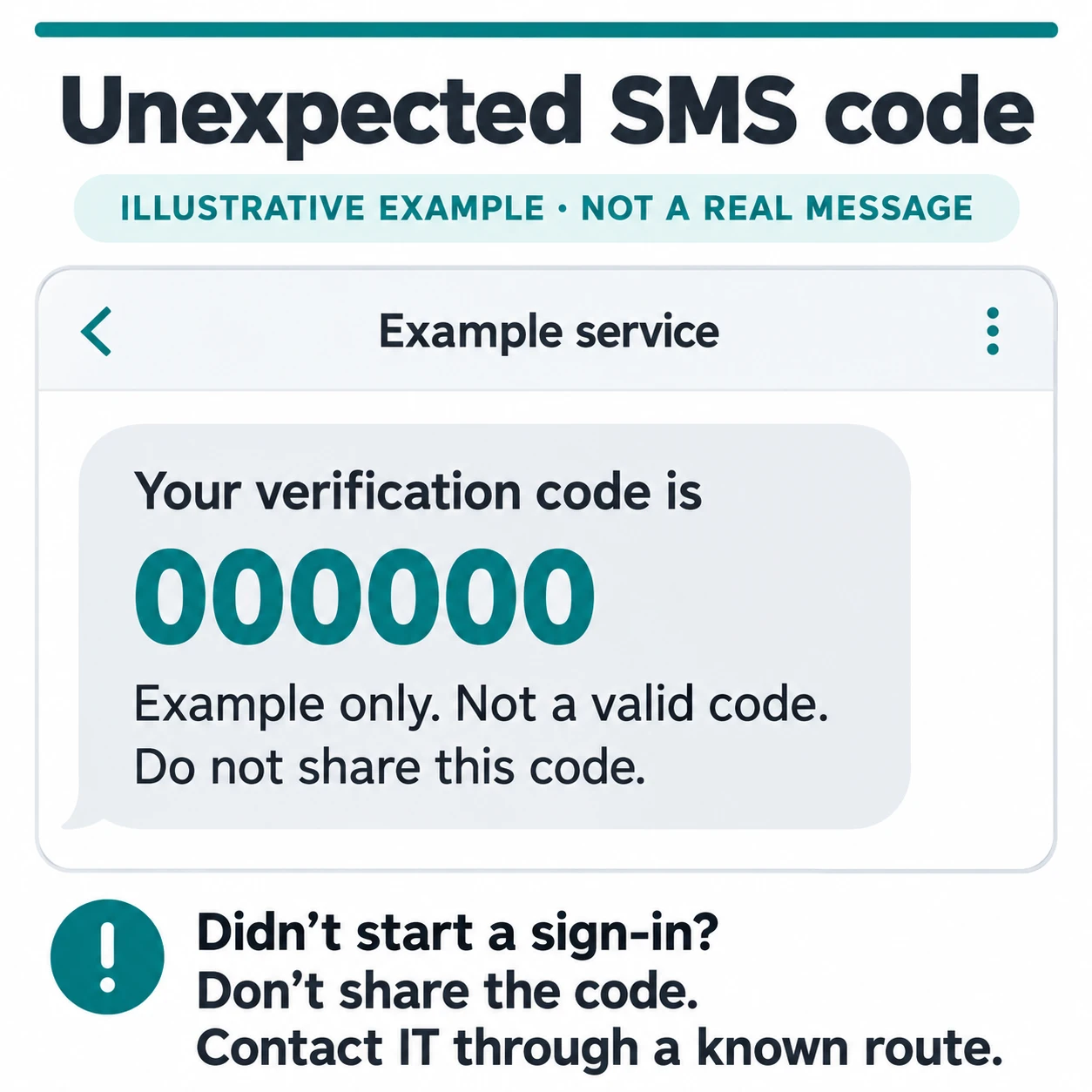
An unexpected SMS verification code deserves the same pause as an app prompt. If you did not start the sign-in, do not share or use the code in response to an unexpected caller or message. Contact your usual IT support through a known route.
1. Connect the prompt to something you actually started
Ask yourself: did I just open a work app, sign in through my usual bookmark, or begin an account change that requires verification? Check which account the request names. A personal account and a work account on the same phone are not interchangeable.
If you cannot connect it to your own action, decline it. Do not approve “just in case” a colleague needs access. Authentication is confirming your sign-in, not authorising someone else’s request for help.
Repeated requests can be an attempt to wear you down, sometimes called MFA fatigue or push bombing. A caller may follow up claiming to be IT and asking you to approve a “security check”. Treat the call and the prompt as unverified until you independently contact your support team. ASD’s Australian Cyber Security Centre advises against sharing MFA codes or approving unknown sign-in attempts.
2. Deny, then report through the normal route
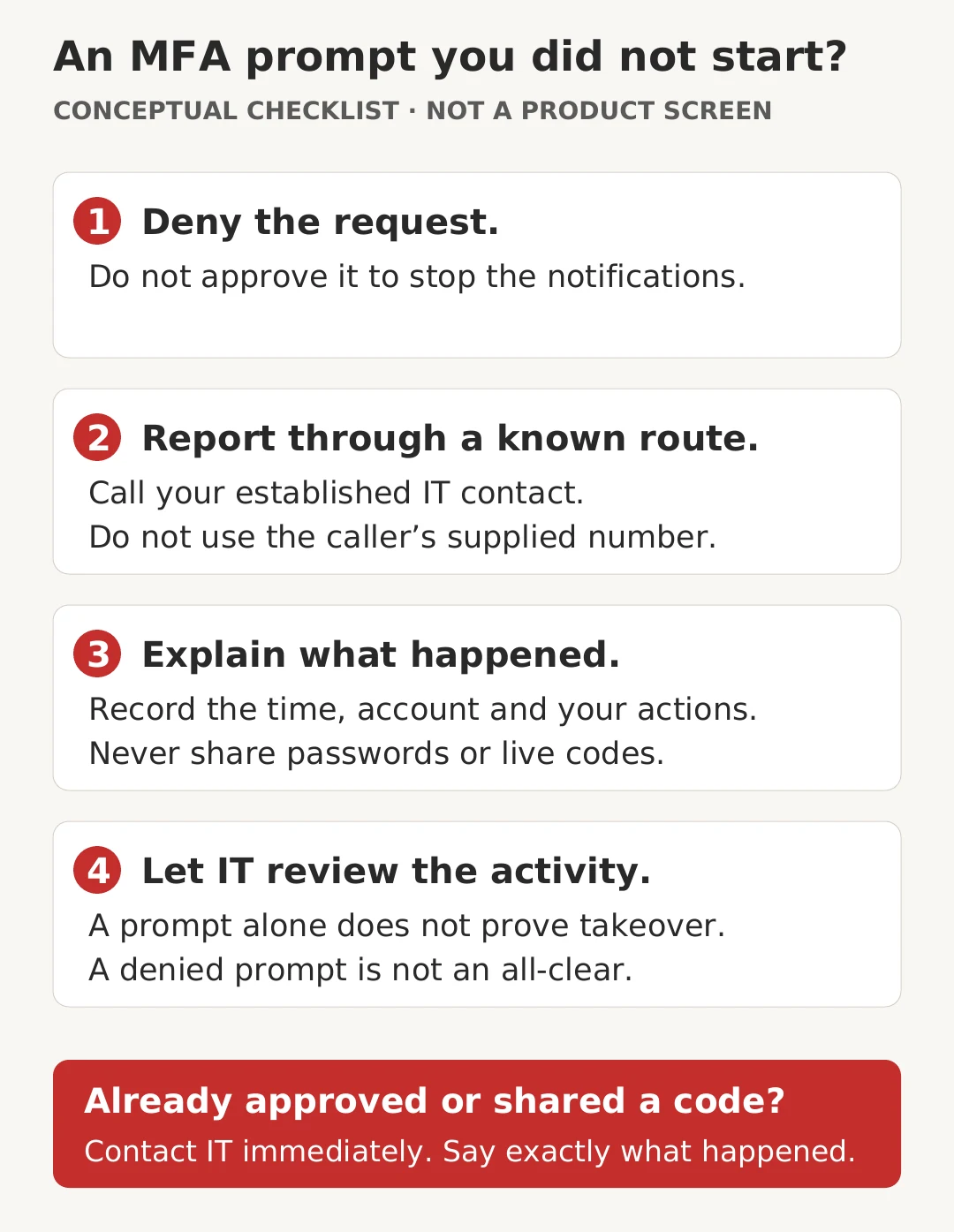
In the genuine authentication app, choose the option that declines the request. If it offers a way to report suspicious activity, use it for a request you did not initiate. Do not follow a separate email or text link telling you where to “cancel” an approval.
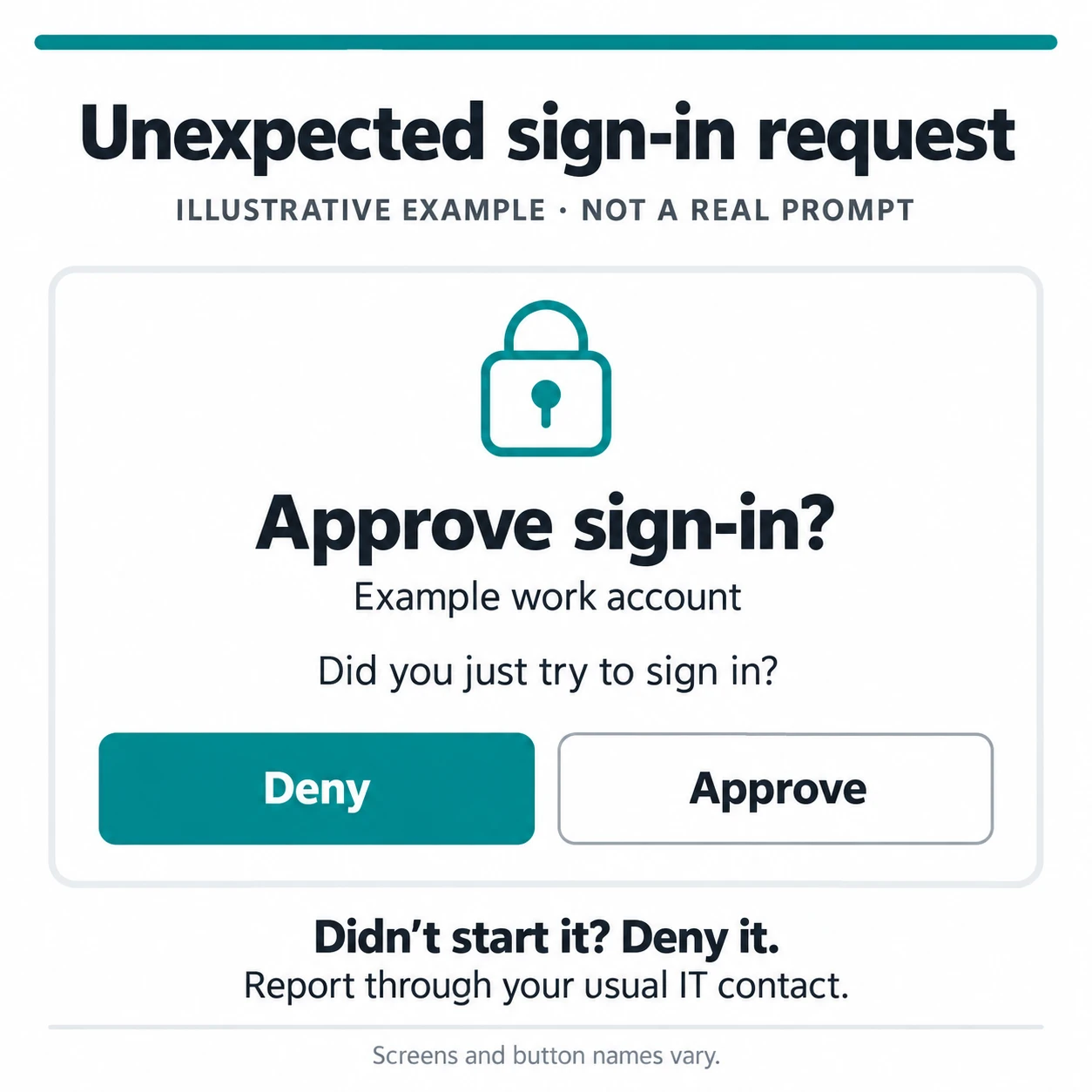
Not everyone will see a reporting option. Microsoft’s suspicious-activity reporting feature depends on the organisation’s configuration. Its absence is not a reason to approve the prompt or to delay telling your support team.
Use your established IT phone number, support portal or internal incident process. If someone has just called you, end that call and start a new one using a known contact. A number in the suspicious message is not an independent check.
Fictional example: Sam is away from their laptop when three work-account prompts arrive. Sam denies them, notes the time, and calls the usual helpdesk. When an unfamiliar caller asks Sam to enter a number to “clear the fault”, Sam declines and tells the helpdesk about the call too.
3. Give IT useful details, not secrets
A short, accurate report is more useful than trying to diagnose the attack yourself. Include:
- The account affected, using your organisation’s approved support channel.
- The approximate time and whether the prompt arrived once or repeatedly.
- What you were doing immediately beforehand, including any recent sign-in or shared-file link.
- Whether you denied, dismissed or approved a request, entered a number, or shared a code.
- Any related call, text or email, without reopening a link or attachment to investigate.
Do not send passwords, live authentication codes, recovery codes or an enrolment QR code. A screenshot may reveal sensitive information, so capture or share one only through your organisation’s approved process. Do not post it in a public group.
4. Review sign-ins without jumping to conclusions
If IT asks you to check activity, open your established Microsoft account portal independently. Microsoft’s work-account instructions describe My Account and Recent Activity. Review the time, app, device details and outcome together.
An unfamiliar location alone is not proof of an intruder. Network routing can make an approximate location look wrong. Equally, do not dismiss an unfamiliar successful sign-in just because the city looks plausible. Send the relevant details to IT promptly.
A denied request is not confirmation that every session is safe. Nor does the notification alone tell you whether somebody knows your password: authentication flows differ. Your administrator can interpret the sign-in evidence and decide what containment is needed.
If you already approved it, say so immediately
Tell IT that you approved an unexpected request, even if nothing unusual has happened since. Do the same if you entered a caller’s number or gave them a code. Fast reporting matters more than working out whether you made a mistake.
Follow your organisation’s incident process. Use a known, trusted route for any password change, never a reset link supplied by the suspicious caller. If account compromise is suspected, a password change may be only part of the response. Microsoft’s administrator guidance includes revoking sessions and reviewing authentication methods, app access and mailbox forwarding. Those are coordinated recovery tasks, not a reason for staff to change tenant settings themselves.
Keep MFA on, and keep the decision yours
Do not remove your account from Authenticator or switch off MFA to stop unwanted prompts. Ask IT to investigate instead.
Number matching adds protection, but only if the number belongs to a sign-in you genuinely started. Never type one simply because a caller reads it out. Microsoft documents different approval experiences, including some same-device Yes/No prompts, so this guide deliberately avoids a one-screen-fits-all walkthrough.
For teams, agree on one familiar reporting route before an incident happens. Practise the simple response: deny, report, explain what happened. Osmicro’s cyber security awareness training can help staff recognise these pressure tactics. If the prompt followed a shared document, our guide to checking a SharePoint file from a familiar sender explains why a known name does not make every sign-in request safe.
Sources checked: 21 October 2026. General staff guidance; not a report of a customer incident or a live account test.