
When a multifunction printer stops emailing scans, changing passwords and server settings can turn one fault into several. Start by preserving the error, identifying who is affected and recording what changed. That gives your printer supplier and IT team something concrete to investigate.
This checklist is for office managers gathering evidence. It covers direct scan-to-email from a printer, with Brother MFC-L5710DW and Microsoft 365 used as a documented compatibility example. If scanning opens an email app on a computer instead, record that difference: it is a different sending path.
This is a documentation-based evidence checklist, not a device setup tutorial or a tested repair. Device controls, firmware support and the permitted sending method vary by model, region and organisation.
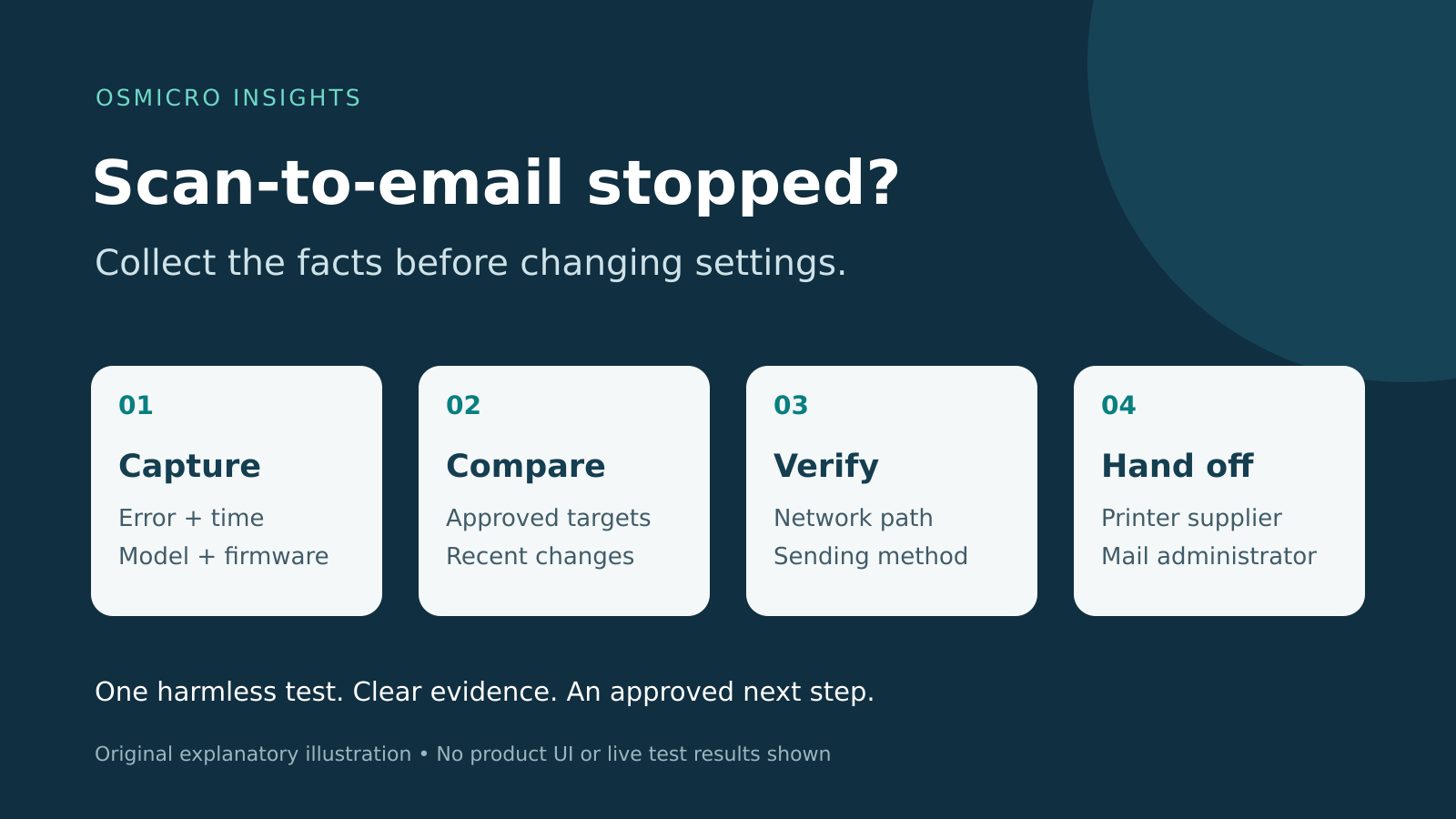
1. Capture the failure before retrying
Take a photo or save the job result before dismissing it. Keep the original for your authorised support team; redact addresses, document names and other private details from anything shared more widely.
- Copy the complete error text and code. Record whether it appeared on the printer, its web page or in a returned email.
- Record the date, exact local time and time zone, plus the last known successful scan. If the printer clock appears wrong, note the difference rather than silently correcting it.
- Record the full model, firmware version if available, office location and whether it uses a network cable or Wi-Fi.
- Record the selected scan shortcut, sender address, intended recipient and approximate file size or page count. Keep passwords and authentication codes out of the report.
A short error label alone rarely identifies the cause. An authentication failure, a connection timeout and a message rejected after sending lead to different checks. If you receive a bounce message, retain its diagnostic section for your administrator. Microsoft explains what the NDR details mean.
2. Make one controlled comparison
Use a harmless one-page test sheet and a mailbox approved for testing. Do not use customer records, patient information or payroll documents. Give the test a distinctive subject if the printer allows it, then record the time and result.
- Does every destination fail, or just one address? Check for a mistyped or outdated address-book entry.
- Does a destination inside your organisation behave differently from an authorised external destination? Test externally only if your organisation permits it.
- Does the printer report a failure, or does it report success while the recipient sees nothing? Ask the recipient to check the expected mailbox and junk folder.
- Can the printer still print or copy? Record the answer, but do not treat working print jobs as proof that the email connection is healthy.
Stop repeated retries once you have a clear result. They can produce duplicate messages and make the timeline harder to follow. A successful small test also does not prove that a larger production scan will pass the same limits.
3. Check the network path without changing it
Note any recent printer move, new router, Wi-Fi change, internet-provider change or firewall work. Tell IT whether other services are affected. Avoid moving the printer onto a personal hotspot or another network as an improvised fix.
Your administrator can check name resolution, the connection to the configured mail service, the required encrypted connection and relevant firewall logs. The checks need to reflect the printer’s actual network path. A laptop browsing the web successfully is not the same test.
The distinction between basic connectivity and reaching the correct service also appears in Osmicro’s guide to RemoteApp failures on one network. Its settings are specific to that RemoteApp scenario; the useful habit here is to verify the path before changing the application.
4. Compare changes with the last successful scan
Ask the mail administrator and printer supplier to compare the failure window with their change records. Useful questions include:
- Was the sending account changed, disabled or restricted? Did its sign-in or app permissions change?
- Did a mail policy, security default, authentication policy or connector change?
- Was the printer firmware updated, restored or replaced? Did a saved shortcut change?
- Did the internet connection or public IP address change? Was a certificate renewed or allowed to expire?
A change near the failure time is a lead, not proof. Record it and let the administrator correlate it with the error and logs. Avoid undoing several changes at once.
5. Confirm the supported sending method
SMTP is the protocol used to hand email to a mail service. Authentication is how that service recognises the sender. The right combination depends on the device, firmware, provider and your organisation’s security design.
Microsoft’s current device-mail guidance distinguishes several options:
- OAuth-based client submission: a compatible device authenticates to a designated cloud mailbox. Microsoft requires supported TLS and a licensed mailbox for this method.
- SMTP relay: an administrator-managed connector recognises an approved certificate or public IP address. This is a mail-flow design, not a password replacement.
- Direct Send: has an internal-recipient scope and does not relay mail to external recipients. An internal success and external failure can therefore be a scope clue.
These are not interchangeable settings. Other provider-supported services may be appropriate; the administrator should choose the method against recipient needs and policy. If SMTP AUTH is intentionally disabled, use an approved alternative rather than weakening the policy.
A documented model example
Brother’s US OAuth support list lists the MFC-L5710DW as supported with an available firmware update. Its model-specific Exchange Online guidance describes OAuth configuration through Web Based Management. This is documented support, not a claim that we tested your printer or tenant.
Have the supplier confirm the regional model, installed firmware and supported procedure before making a change. OAuth support in the printer does not, by itself, establish that your organisation permits that connection. The mail administrator must also review the relevant SMTP AUTH controls and approved account or application access.
Do not switch off MFA, security defaults, certificate checks or encryption to make a scan work. Do not enter an administrator’s everyday password into the printer, assume an app password will work, or move business scans through a personal email account.
6. Give both support teams the same facts
Use our IT support ticket evidence checklist to organise the record so both teams can work from the same timeline.
Send your existing authorised support contact a compact record with these fields:
- Device and location; firmware if known; cable or Wi-Fi.
- Last success; first failure; time zone; full error or redacted photo.
- Sender and approved test recipient; internal or external; test time and result.
- Known network, account, mail-policy or firmware changes.
- Business impact: who is blocked and any genuine deadline.
Ask the printer supplier to confirm device compatibility and the mail administrator to check the sending design and delivery evidence. In Microsoft 365, message trace can show whether the service received, rejected, deferred or delivered a message. A missing result needs the right search details and time for trace data to appear; it is not immediate proof that the printer never sent anything.
After an approved correction, repeat the same harmless test and confirm receipt and a readable attachment. If your workflow requires external delivery or larger scans, have the support team validate those separately. Record what changed and who owns the configuration.
If the fault spans the printer, network and mail service, Osmicro’s IT support team can help investigate the handoff. Start with the evidence above so the next step addresses the failure you actually have.
References checked 14 November 2026. The Brother example uses US manufacturer documentation; installed regional firmware and tenant compatibility have not been tested. Illustrations are conceptual. No customer incident, authorised sample scan or successful repair is claimed.