
A new employee can have a laptop and an account and still spend their first morning waiting for access. The useful check is whether they can complete a small, ordinary task with the right permissions: open their work email, reach the team’s files and start the application their role depends on.
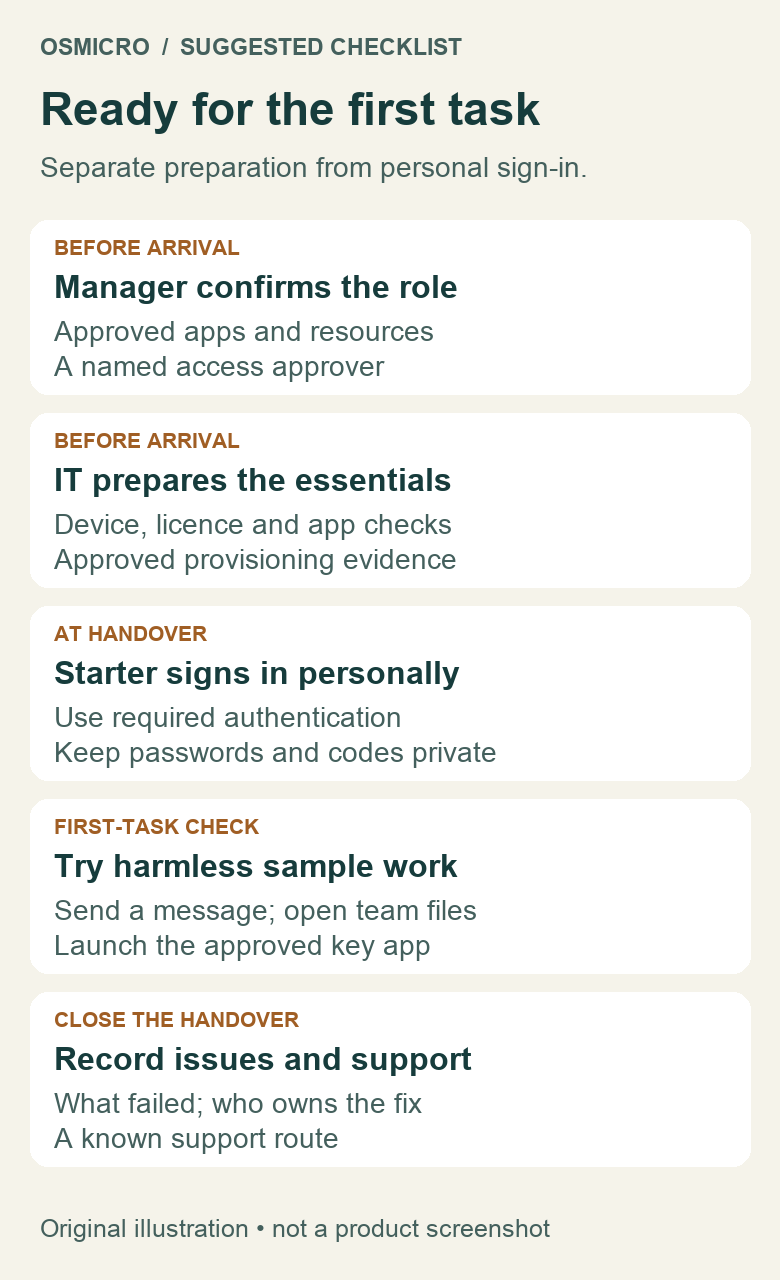
Use this checklist to separate the work a manager and IT can prepare in advance from the personal sign-in steps the starter must complete at handover. It is a suggested process for an office using Microsoft 365 and business applications, not a record of an actual employee onboarding or a universal company policy.
1. Agree on the first task and its access owner
Start with the job the person needs to do, rather than copying every permission from another employee. Ask the manager to name the required applications, team resources and a person authorised to approve access. Include the start date, work location and any equipment or accessibility needs in the organisation’s approved onboarding process.
Fictional example: a customer-service starter needs work email, Teams, a customer-service document library and a training application. Finance folders and administrator roles are outside that role unless separately approved. The manager approves the access list; IT implements it through the normal controls.
For each resource, record the level needed: viewing a reference library is different from editing its contents, and using an application is different from administering it. Microsoft’s guidance on administrator roles recommends limiting permissions, scope and duration to the task. Do not assign a powerful administrator role simply to clear an onboarding error.
2. Check the account, licence and application separately
Account creation is one part of readiness. Microsoft’s user setup guidance distinguishes the user account from its product licence and enabled applications. A sign-in name alone does not establish that all the required services are available.
Ask the authorised administrator to confirm the intended account, the appropriate licence and the services needed for the role. Check the organisation’s existing group-based assignments and provisioning process before adding exceptions. Other business applications may also need a separate licence, invitation or role assignment.
If a Microsoft 365 licence assignment fails, investigate its status instead of repeatedly adding access. Microsoft lists insufficient available licences, conflicting plans and an invalid usage location among the reasons an assignment can fail in its licence administration guidance. Any purchase or access change still follows the business’s approval process.
3. Prepare the device without impersonating the starter
Have IT check that the intended computer starts reliably, connects through the approved network, has the supported software and required security management, and can reach the approved application entry points. Include practical peripherals such as a monitor, headset and charger when the role needs them.
Before arrival, use provisioning status, approved administrative checks or a designated test process to validate what can be checked. Do not log in as the starter to pretend that personal authentication has been completed. A test account’s success also does not prove that the new employee has the same effective access.
Keep two separate results: prepared by IT and confirmed by the starter. That avoids marking a task complete simply because software was installed or an account appeared in an administration page.
4. Let the starter complete their own sign-in
At handover, explain the approved sign-in route and how to reach known IT support. The starter should complete their own authentication and register the methods required by the organisation. Microsoft’s security information guidance explains that a first sign-in may prompt for information the organisation requires; the available experience depends on its configuration.
Do not ask the employee to send a password, recovery code or one-time authentication code to a manager or put it in the onboarding checklist. Use the organisation’s approved secure handover method for any initial credential. An assistant or colleague should not become the long-term owner of the starter’s personal authentication.
If enrolment fails or the expected method is unavailable, stop and use the known support route. Do not disable MFA or switch to an unapproved method to finish faster. Give the starter the related guide on what to do about an MFA prompt they did not initiate.
5. Run a harmless first-task check together
Use a sample document and an agreed internal recipient. Let the starter send a harmless test message, open the assigned team library and launch the key business application. Where editing is needed, use an approved test file rather than changing a live customer record. Check only resources within the approved role; do not explore unrelated folders to see what is exposed.
Record whether each task succeeded and what remains unresolved. A useful issue entry names the application, the attempted task, the time and the exact non-sensitive error text. Exclude passwords, tokens and customer data from notes or screenshots. Record who owns the fix and when they will check back; do not invent a resolution time.
6. Finish with an honest handover
The first morning is ready when the approved core tasks work, the starter knows the support route and any remaining limitation has an owner. If an application is unavailable, agree on an approved alternative task rather than borrowing a colleague’s account.
Keep the checklist with the business’s onboarding record and review role access when responsibilities change. For a consistent approach to device preparation, access management and support, discuss the process with Osmicro’s managed IT team. The aim is a usable first morning with access appropriate to the job.
Microsoft references checked 31 October 2026. This general checklist does not replace the employer’s access approvals or its device and authentication policies.