
If Chrome slows down while you are working, save your forms and drafts before closing anything. Chrome has its own Task Manager that can help you identify a busy tab or extension. Make one change, then repeat the activity that was slow.
This guide covers desktop Chrome on Windows and Mac. Menu wording can differ by version, and company policies may control some settings.
1. Check whether the problem is Chrome or one website
Notice whether switching tabs and typing are slow, or whether just one page takes a long time to respond. Check whether other apps are struggling too. Record the affected site and approximate time.
If one link will not open while the rest of Chrome works normally, start with our website-link troubleshooting guide. The steps below focus on a sluggish browser and resource-heavy tasks.
2. Open Chrome Task Manager and inspect the busy tasks
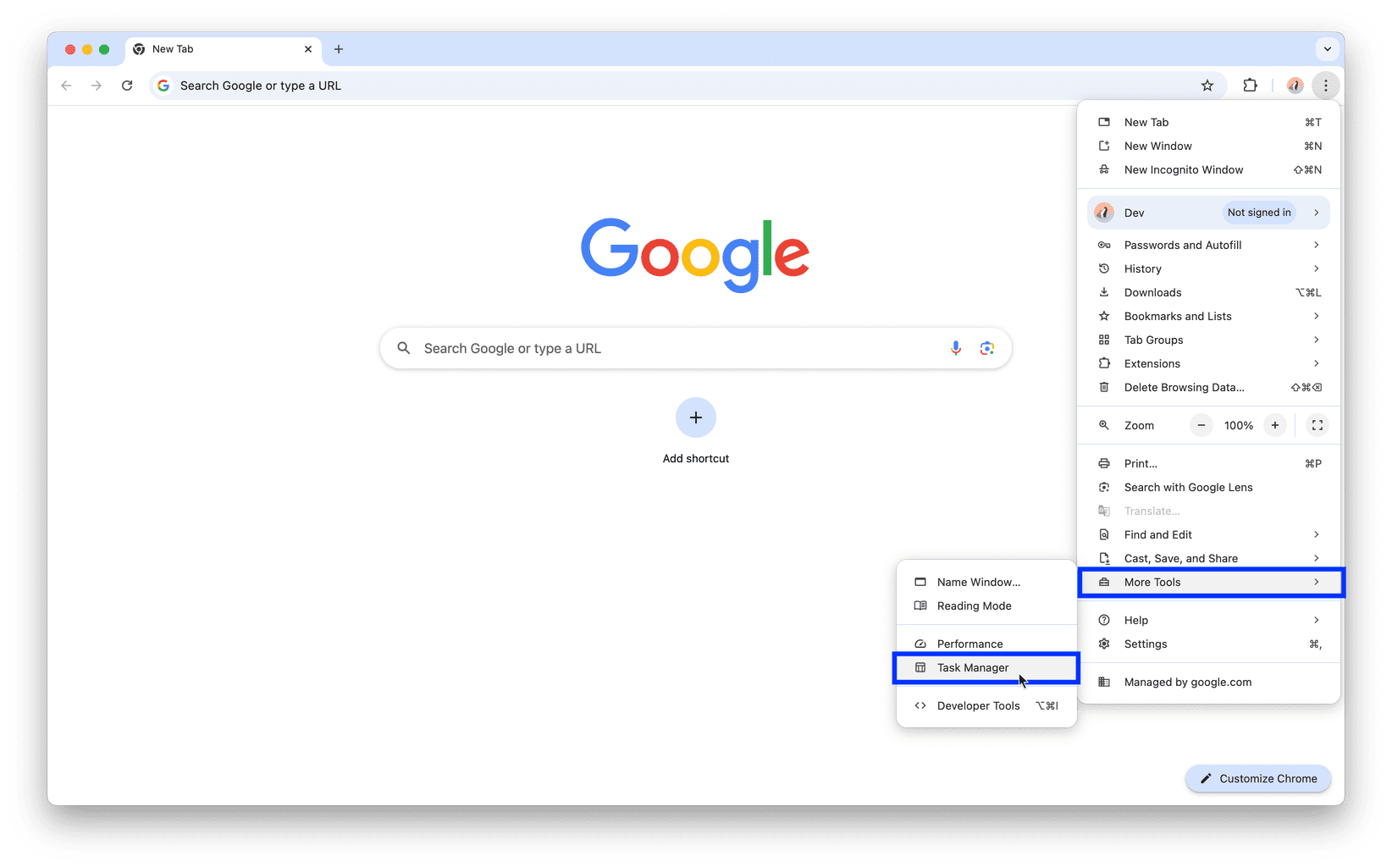
- In Chrome, open the three-dot menu at the top right.
- Choose More tools > Task Manager.
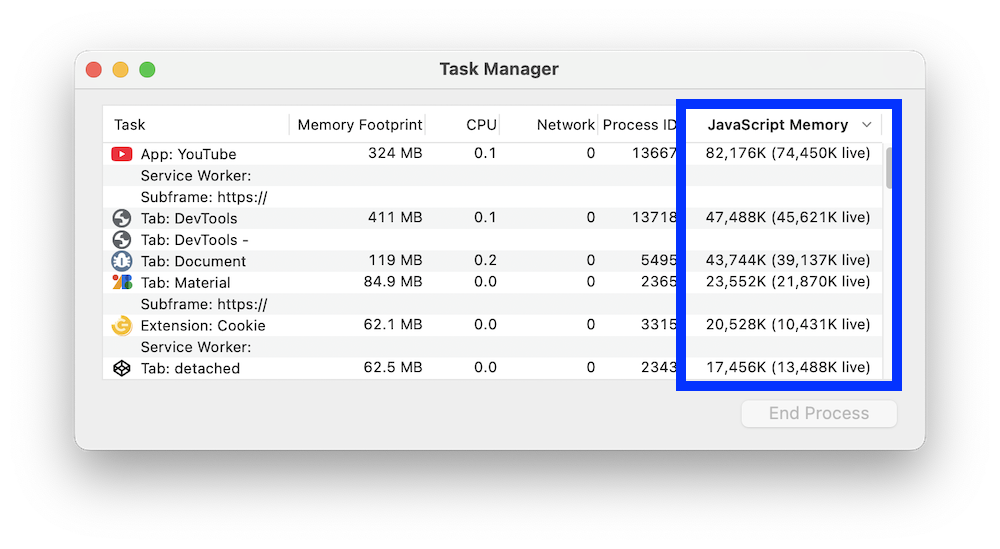
- Click the memory column, often labelled Memory footprint, to sort it. If the largest values are at the bottom, click again.
- Check the CPU column as well. Watch what changes while you repeat the activity that feels slow.
- Find a task you recognise. A large memory value or a short CPU spike alone does not prove a fault. A report, video call or other demanding page may legitimately use more resources.
3. Close one saved, unneeded tab and compare
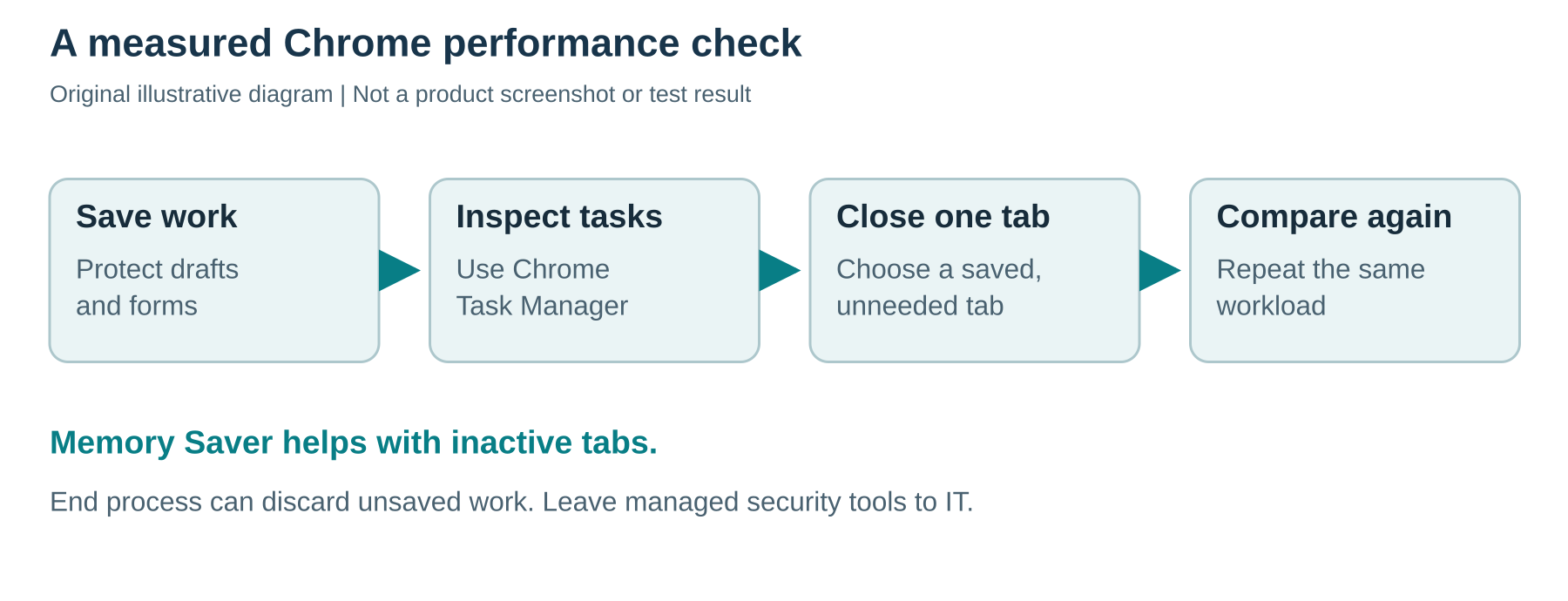
Return to a tab you recognise, save its work and close it normally. Repeat the same activity in the affected business app. Did typing, switching tabs or opening the same report improve? Record what changed before trying anything else.
End process can lose unsaved work in the selected task. Use it only for a recognised, unneeded task that will not close normally, after protecting your work. Leave Browser, GPU, company-managed, security and unfamiliar tasks alone. If you cannot identify the entry, ask IT.
Do not clear all browsing data, reset Chrome or disable security tools as an early performance test. Those changes can interrupt sign-ins and work without establishing the cause.
4. Test an optional extension, one at a time
If the problem persists and your organisation permits it:
- Open the three-dot menu > Extensions > Manage extensions.
- Choose one optional extension that you recognise and switch it off. Do not remove it.
- After saving work, reload the affected page and repeat the same task.
- If nothing improves, switch that extension back on before testing another. If it does improve, record the extension name and ask IT to confirm the next step.
Leave password managers, security extensions and anything installed or required by your business in place. Do not bypass a managed-browser restriction.
5. Use Memory Saver for tabs you are not using
Open three-dot menu > Settings > Performance and find Memory Saver. It frees memory from inactive tabs; they reload when you return. It will not repair a slow website or guarantee faster browsing.
If the control is available and your business permits it, turn on Memory Saver. Where a mode is offered, Google identifies Balanced as recommended. Keep important work saved before trying it.
For an approved business site that genuinely needs to stay active, go to Always keep these sites active > Add. Select the required open site or enter its address. Keep this list narrow and remove a test exception if it was not needed.
Calls, downloads, screen sharing and other activity can prevent tabs from being deactivated. Do not expect every background tab to unload immediately.
6. Check the version and give IT useful evidence
Open three-dot menu > Help > About Google Chrome to see the version and check for updates. If Relaunch appears, save work and choose a suitable time. Incognito windows will not reopen automatically. If updates are managed, follow your IT team’s process.
If the slowdown returns, send your IT support team the affected site, time, Chrome version, whether other apps were slow, and the single change you tried. Include the task or extension name if you identified one. Remove private information before sharing any screenshot.
That gives the technician a repeatable starting point and helps avoid changing unrelated settings.
Sources
- Google Chrome Help: Speed up Google Chrome
- Chrome for Developers: Fix memory problems
- Google: Install and manage extensions
- Google Chrome Help: Personalise Chrome performance
- Google Chrome Help: Update Google Chrome
Technical guidance checked 12 October 2026. Google’s documentation screenshots illustrate an earlier macOS interface and are reproduced without alteration. Portions of this page are reproduced from work created and shared by Google and used according to terms described in the Creative Commons 4.0 Attribution License.