
An earlier draft has the paragraph you need. The current file has work your colleagues added this morning. Restoring the whole file would replace that newer content, so start by opening the earlier version and checking what you actually need to recover.
This guide covers business files stored in OneDrive for work or school and SharePoint in Microsoft 365. It focuses on one file with unwanted edits. If many files have changed unexpectedly, stop and contact IT before attempting individual restores.
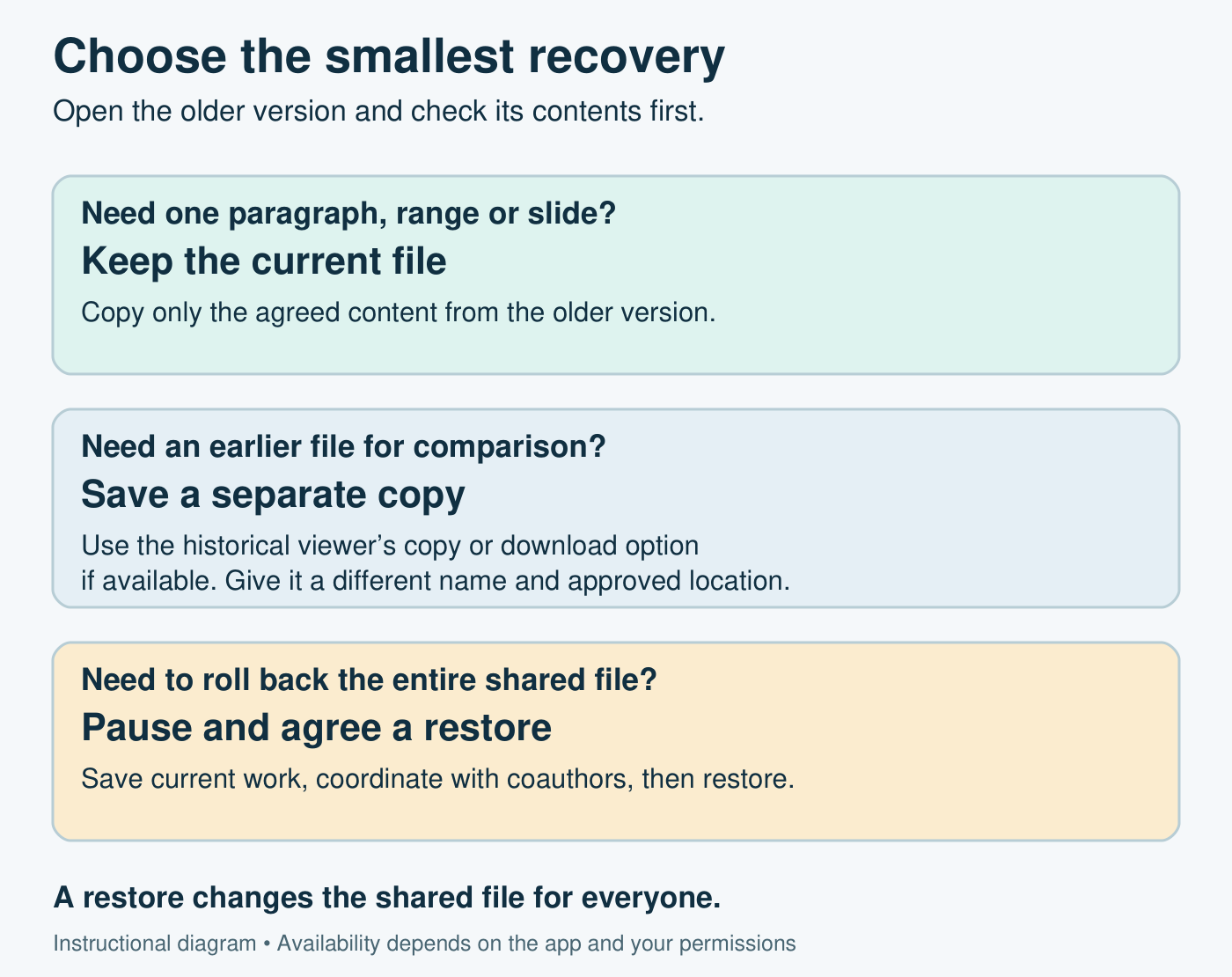
Choose the smallest recovery
Microsoft distinguishes viewing an earlier version from restoring it. Viewing lets you inspect the old content; restoring makes that content current. There is no automatic merge of the newer contributions.
- Need a paragraph, range or slide? Inspect the earlier version and copy only the agreed content into the current file.
- Need an earlier file for comparison? Save a separately named copy from the historical viewer if that option is available.
- Need everyone to return to an earlier whole file? Coordinate a restore with the people editing it.
Confirm the file and protect current work
Open the file from its OneDrive or SharePoint location in your browser. Check the account, site or folder, filename and extension. A similarly named attachment or downloaded copy may be a different file with a different history.
Tell the other editors what is missing. Before making changes, agree who will carry out the recovery and ask everyone to finish saving their current work. If an app reports pending uploads or a sync error, resolve that first. Our guide to OneDrive status icons helps identify sync warnings; an icon alone cannot confirm that the required content is safe.
Keep a separate copy of the current file in an approved business location before a whole-file restore. In current Word for the web, Microsoft documents File → Create a Copy → Create a copy online, or Download a copy. In desktop Office, look for File → Save a Copy; some versions use Save As. Give the copy a distinct name such as Project-plan-current-before-recovery.docx, then confirm which file remains open. See Microsoft’s Word web copy instructions and Office save and recovery guidance.
A downloaded or copied file still contains business information. Keep it in an authorised location and review access before sharing it. Our OneDrive and SharePoint sharing guide explains how to check the recipient and permission.
Open and compare the earlier version
Use the route that matches the file you have open. These are documented Microsoft routes; labels can vary by app release and library experience.
- OneDrive website: select or right-click the file, then choose Version history.
- SharePoint library: open the file’s three-dot menu, then Version history. In some library views, select More first.
- Word, Excel or PowerPoint for the web: open the file, then File → Version History and select a version.
- Microsoft 365 desktop apps: select the filename at the top, then Version history. Windows also offers File → Info → Version History. On Mac, look for Browse Version History under the document name.
In the Office history view, choose an earlier version to open it. Desktop Office opens it in a separate window. Keep the historical view and current document clearly identified. Microsoft’s guide to viewing previous Office versions covers the app-specific routes.
Use the recorded time and author to narrow the search, then inspect the actual content. Check the missing wording, a known figure, sheet name or slide. A timestamp is a clue, not proof that you have found the right version. Record the version number if shown and the displayed date and time, including the time zone if known. Do not choose Restore merely to see what a version contains.
Recover selected content or a separate copy
For a small recovery, leave the current file in place. Copy the required content from the older view into a separate comparison document first if you need to review it. Agree the change with the relevant editor before adding it to the live file. Check formatting and surrounding text; for a spreadsheet, also check formulas, references and totals rather than pasting values blindly.
Illustrative example: yesterday’s proposal contains the correct pricing paragraph, while today’s version includes a revised scope. Recovering the pricing paragraph alone can preserve the new scope. A whole-file restore would require the team to recheck that newer material.
If you need the complete older file, use Save a Copy, Save As or Download only if the historical viewer offers it. Choose a different filename and approved destination, then reopen the saved copy and check that it contains the older content. Microsoft explicitly documents saving a historical PowerPoint version separately in its PowerPoint collaboration guide. The available controls are not identical across file types and viewers.
If the old-version viewer has no copy or download option, stop at comparison and ask the file owner or IT for the supported route. Do not restore the shared original just to obtain a download, and do not upload an older copy over the current filename.
Restore the shared file only after coordinating
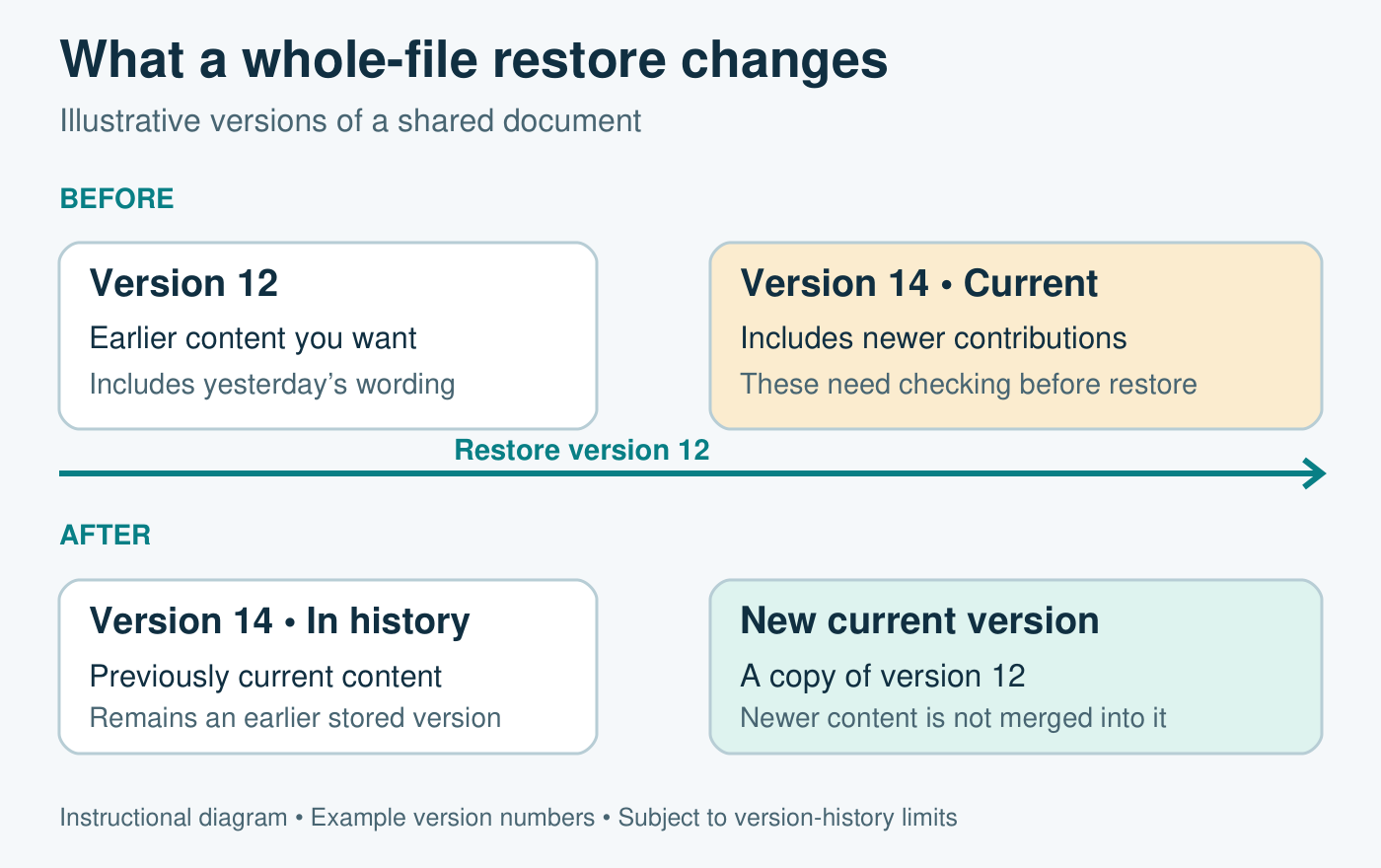
Use a whole-file restore when the team has agreed that the earlier content should become current. Confirm that everyone has stopped editing, that current changes have saved and that you have preserved any newer material you may need. Microsoft specifically says to wait until everyone has stopped coauthoring before restoring a shared Excel workbook. Apply the same pause-and-coordinate precaution to other shared documents.
OneDrive: open Version history, select the three dots beside the chosen version, then Restore. Microsoft’s OneDrive restore instructions explain that the selected version becomes current and the former current version moves back in the history.
SharePoint: open the library file’s Version history. In the history list, open the dropdown beside the older version’s date, select Restore, then confirm with OK. Microsoft’s SharePoint restore instructions describe creating a new latest version from the selected historical version. If the menu differs or the action is unavailable, ask the library owner rather than changing settings.
Verify the result before editing resumes
- Reopen the current file from the original OneDrive or SharePoint location. Check the recovered content and the newer work the team agreed to retain.
- For a workbook, check relevant formulas, totals and linked sheets. For a document or presentation, check layout, comments and tracked changes where used.
- Reopen Version history after a restore and confirm the new current entry. Record what was recovered, who carried it out and the version used.
- Ask the document owner or affected coauthor to check the result, then tell the team which file is the working copy and when they can resume editing.
If the result is wrong, keep editing paused. Inspect the previously current version or preserved copy before making another change. Repeated, uncoordinated restores make it harder to work out which content should survive.
When the version or command is missing
Do not assume every business file has a fixed number of days of recoverable history. Microsoft 365 version-history limits can depend on organisation, site, library and OneDrive account settings, including version counts and expiration. Versions removed by automatic limits or trimming can be permanently deleted.
If Version history, Restore or a download command is missing, ask the owner or IT to check your permissions and the library settings. Being able to open the current file does not necessarily mean you can see historical versions. Provide the exact file location, approximate last-good time, what changed and the error or missing command. Do not delete history, broaden sharing or change versioning settings to work around the problem.
If you cannot identify a safe recovery route, Osmicro’s IT support team can help investigate the file and its available recovery options. For a broader review of what your business could recover after deletion or an outage, see our backup and disaster recovery services. Keep the immediate recovery focused on the smallest change that gets the required content back.
References checked 12 November 2026. All illustrations are original instructional diagrams, not Microsoft screenshots or evidence of a recovery test.