
An installer can finish successfully while an important business task no longer works. Before updating a business application, agree what needs to remain compatible, how you will check the result and what happens if the change cannot be accepted.
This is a planning checklist for business owners and authorised IT support, not installation instructions. Your application's current vendor documentation governs the actual procedure. The useful outcome is a short, agreed change plan rather than a collection of assumptions made during an outage.
Match the checks to the urgency
Consider the risk of leaving the software unchanged alongside the risk of disruption. Australian Signals Directorate patching guidance recommends timing updates according to exposure and planning for faulty patches. A routine feature update and a fix for a vulnerability being actively exploited may need different decisions.
Testing should not become an indefinite reason to leave a known exploited vulnerability unresolved. If the usual preparation cannot fit the urgency, escalate to the authorised decision-maker for an emergency change or suitable vendor mitigation. Osmicro's patch management service provides context for managing updates as an ongoing process.
Check the whole working environment
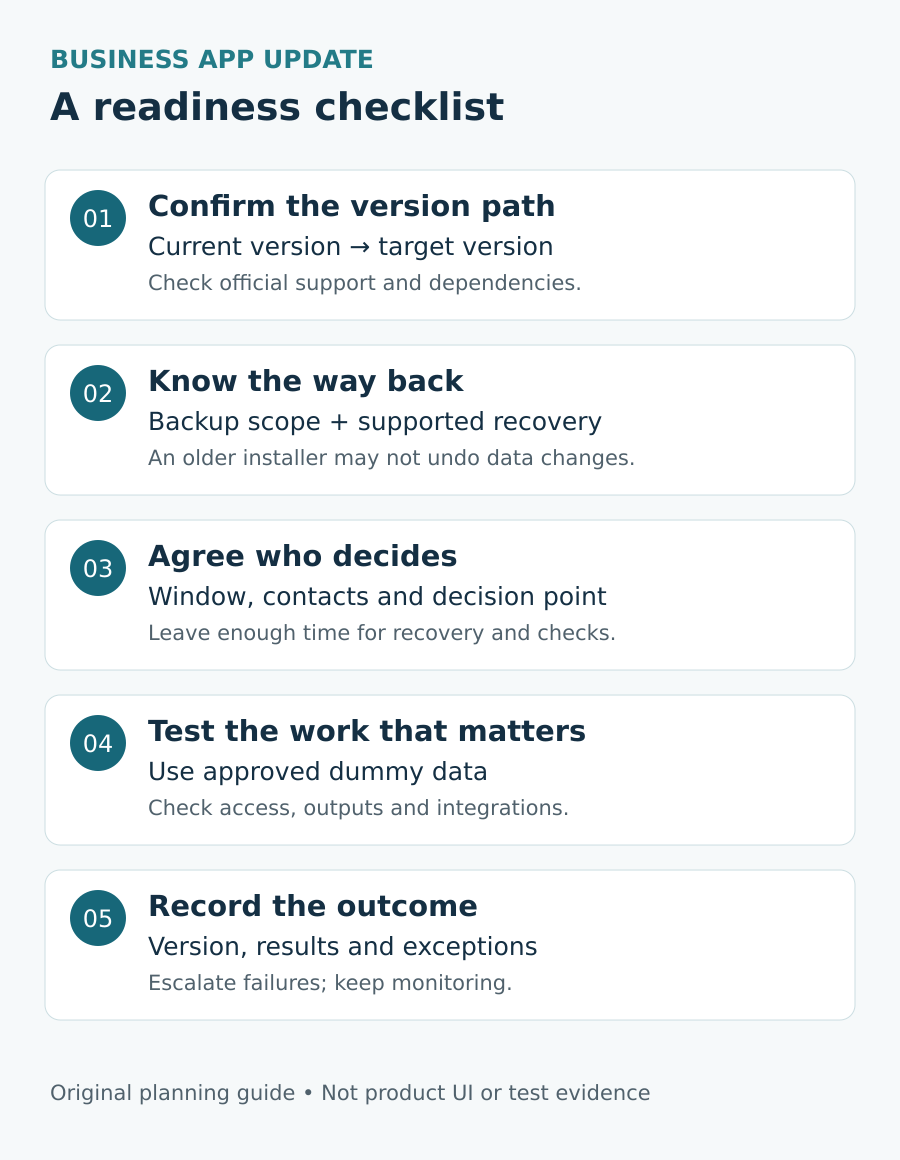
Record the current and proposed application versions, including the edition where relevant. Read the release notes, known issues and supported upgrade path. Check the operating system, database, plugins and connected tools against the target version's requirements. Confirm licence eligibility and storage requirements rather than assuming an existing installation proves readiness.
Microsoft's SQL Server upgrade-planning guidance illustrates why dependencies and compatibility matter. It is SQL-specific guidance, not a procedure for every business application.
Ask a staff member who uses the application to describe its connections in everyday language. “We send this export to the reporting tool each afternoon” may reveal a dependency missing from a basic software list. Record unresolved compatibility questions and who will answer them before the change is approved.
Write down what a working result means
Choose a small set of important workflows and their expected results before updating. Where available and authorised, use a representative test environment. Document meaningful differences from production so a successful rehearsal is not treated as proof that every live condition has been covered.
For a fictional scheduling application called DemoDesk, a proposed acceptance check might be:
- Sign in using an authorised test account.
- Create a clearly labelled dummy booking in the approved test environment.
- Export the sample booking to the connected reporting tool.
- Open the resulting report and check the expected fields.
- Confirm that an ordinary user can do permitted tasks without gaining unintended access.
DemoDesk is invented. These are proposed checks, not tests that have been performed or evidence about a real product. Agree the relevant checks with your application owner; do not create dummy transactions in live systems without an approved process.
Confirm a usable way back
Know what must be backed up, when the backup will be taken and how recovery would be carried out. Establish that the required data and configuration are covered and that the authorised recovery team can access what it needs.
A backup and a rollback procedure answer different questions. Ask the vendor whether the update changes the database or file format, and whether reinstalling an older executable can actually reverse that change. Do not assume that an uninstall button restores the previous working environment.
Broadcom's IMS upgrade-planning example covers backup timing, testing and back-out decisions for its products. Use your own vendor's supported recovery procedure. Our safe backup restore check discusses a separate, limited file-recovery exercise; it does not validate an entire application's rollback plan.
Give the change a clear owner
Agree an authorised maintenance window that includes time for validation and recovery, not just installation. Name the person who can decide to proceed, pause or recover. Set the latest safe decision point and identify who must be available if something fails.
ASD's system-management guidance supports documented administration, necessary approvals and notification of affected people. Tell staff what will be unavailable, when they can expect an update and which approved alternative they may use.
Put the practical details together in one place: version change, vendor instructions, outstanding questions, planned checks, recovery reference, decision owner and contact route. Keep credentials and sensitive records out of a broadly shared change note.
Verify the result before closing the change
After the authorised update, confirm the installed version using the vendor's method and run the agreed workflow checks. Record actual results, exceptions and who accepted them. “Installer completed” is not a substitute for “the agreed export opened correctly in the reporting tool”.
Keep an agreed observation period for relevant errors or delayed jobs. If a check fails, use the recorded decision point and escalation route rather than improvising repairs or weakening security controls. Tell affected staff whether normal work can resume and record any remaining limitations.
For help coordinating application owners, update planning and ongoing support, see Osmicro's managed IT services.
References checked 11 November 2026. Feature image: original AI-generated conceptual illustration; not a product screenshot or a completed update.