
“It isn't working” is a real problem, but it leaves the support team guessing about what failed and what you need to do next. A useful ticket describes the symptom, the time, the impact and a safe way to contact you. It does not need a diagnosis or a folder full of screenshots.
This checklist is a suggested starting point for routine support, not a replacement for your organisation's reporting process. If the problem involves suspected compromise, lost equipment, exposed information or an urgent operational risk, use your established incident or urgent-support route straight away. Do not delay reporting while collecting a perfect ticket.
Start with what you can observe
Choose a subject that identifies the application and the symptom. “Teams microphone silent on work laptop” is more useful than “Urgent computer problem”. In the description, explain what you were trying to do, what you expected and what actually happened.
Copy the exact error text if it contains no sensitive information. Include a relevant error code rather than paraphrasing it as “an error”. If the message contains a name, private address, account detail or document content, remove that information and say that it was redacted.
Separate observation from a guess. “The application stopped responding after I connected the headset” is an observation. “The headset broke Windows” is an unproven diagnosis. It is fine to say that you do not know the cause.
Add time, scope and business impact
Record the first occurrence and the most recent one, with the date and timezone. “At 9:10 am Sydney time on 9 November” is easier to correlate with support records than “this morning”, especially when a ticket is read later.
Say whether the problem affects one person, several people you have checked with, or an unknown number. Do not turn an assumption into “everyone is affected”. Describe the work that is blocked, any real deadline and any approved workaround you can still use.
Microsoft's support-request guidance similarly asks for problem details, start time, reproduction steps and business impact. Its Azure form is product-specific; the checklist here adapts those principles to everyday office support.
Record safe comparisons, not a troubleshooting marathon
List what you have already tried and the result of each step. “Restarted Teams once; microphone still silent” is useful. “Tried everything” is not. Mention a recent update, move, new peripheral or network change if you noticed one, without assuming it caused the fault.
Only repeat a test when it is safe, permitted and will not create duplicate transactions, lose unsaved work or affect other people. You do not need to disable security tools, change DNS, install utilities or reset equipment just to gather evidence.
A comparison can narrow the next question. Osmicro's RemoteApp connection troubleshooting article illustrates why the network on which a failure occurs matters. For a staff ticket, record an already-observed difference; leave network configuration changes to authorised support.
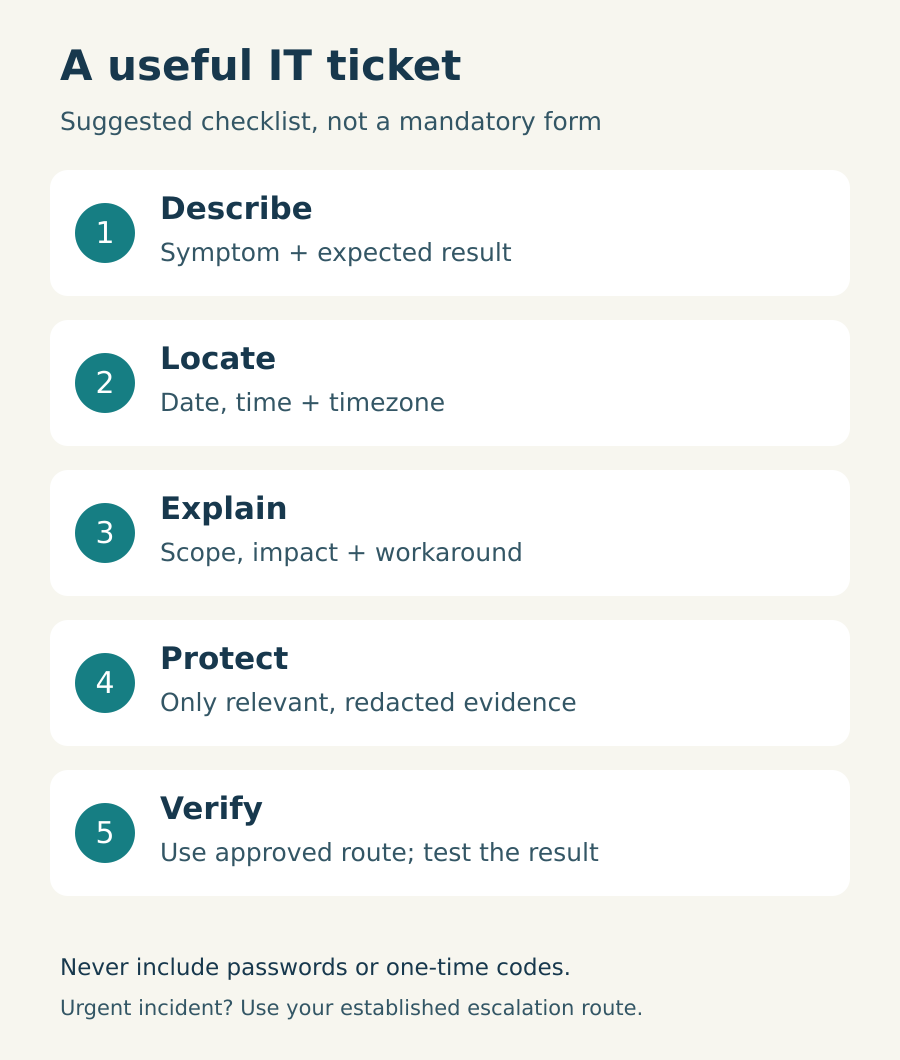
Copy this short ticket template
- Subject: application or device type, plus the specific symptom.
- Expected and actual result: what you were doing and what happened instead.
- Time: first noticed, latest occurrence, date and timezone.
- Scope and impact: who is known to be affected, blocked work, deadline and approved workaround.
- Evidence: exact safe error text, cropped image if useful, and relevant recent changes.
- Checks already made: one line per permitted check, including its result.
- Contact: your usual work contact and availability through the approved support channel.
Use a device identifier only where your internal support process requires it. Never put real device names, private network addresses or customer information into a public forum or public example.
A fictional example
“Teams microphone silent on DEMO-LAPTOP. First noticed at 9:10 am Sydney time on 9 November. I can hear the meeting, but colleagues cannot hear me. One person is known to be affected. My USB headset is connected. I restarted Teams once and the symptom remained. I can use an approved alternative for the next call. A cropped image of the selected audio device is attached, with names and meeting details removed.”
This is an invented example, not a customer incident or a tested fix. It gives support a clear starting point without claiming that the selected device is definitely the cause.
Check the attachment before sending
Include only the relevant part of an image. Inspect the saved copy, not just the editing preview. Check browser tabs, notifications, filenames and background windows for information that does not belong in the ticket. If you cannot safely redact an image, describe the symptom in text instead.
Never send passwords, one-time codes, recovery passwords, API keys or complete client or patient records in a routine ticket. Microsoft's Authenticator safety guidance warns about callers pretending to be support and asking for authentication codes. A request that sounds technical does not make sharing a code safe.
Logs and diagnostic bundles can contain more than the visible error. Send them only when requested, using the approved secure route and the minimum information needed. Do not upload work evidence to a public image host or an unapproved AI tool to redact it.
Send, then help verify the result
Use your existing support route. Osmicro customers can check the Customer Service Centre for published support contact options. This guide does not create a new priority policy or promise a response time.
Keep the ticket reference and add subsequent observations to the existing conversation where your process permits. After support makes an authorised change, test the original task and report the result and time. For an intermittent fault, say how long you observed it rather than declaring it permanently fixed after one successful attempt.
Clear evidence helps Osmicro IT support ask a better next question. The goal is not a longer ticket. It is a smaller, safer set of facts that someone else can act on.
Feature image: original AI-generated conceptual illustration; not a product screenshot or customer incident.