
A call works at your desk, then the audio breaks up as you walk into a meeting room. By the time IT checks, the connection looks normal again.
The useful starting point is a short record of where and when it happens, followed by a few controlled comparisons. A fast speed test after the call has ended cannot show what happened during that interruption.
This guide covers Teams, Zoom and similar voice or video apps using office Wi-Fi. Mobile-carrier Wi-Fi Calling has additional handset and carrier dependencies. Tell support which kind of call is affected rather than treating them as the same service.
First describe what actually stopped
Was it a brief audio gap, a frozen picture, a disconnected call, or the whole device losing Wi-Fi? Did the other person lose your voice while you could still hear them? Record the visible error and approximate duration. These differences help the technician choose what to inspect.
If an important call is failing, stop moving and use your organisation’s approved fallback. Do not keep interrupting customers to reproduce it. Arrange a harmless test call with a colleague who knows its purpose, and walk only where it is safe. You do not need to record the conversation.
Why moving can expose a problem
In an office with several access points, a device may move its connection from one access point to another. This is roaming. Apple’s roaming documentation explains that the client makes roaming decisions using factors including signal conditions and available access points. Its behaviour varies across device families.
Cisco Meraki’s roaming guidance explains that association and authentication delays during a transition can affect voice and video. That makes roaming worth checking, but a dropout while walking does not prove that roaming caused it. Coverage, interference, the device, the application and the wider connection still need to be considered.
Make a small comparison plan
Use the same device, app and willing colleague where practical. Keep the VPN and other managed settings as they normally are. Note any unavoidable difference rather than silently changing several things.
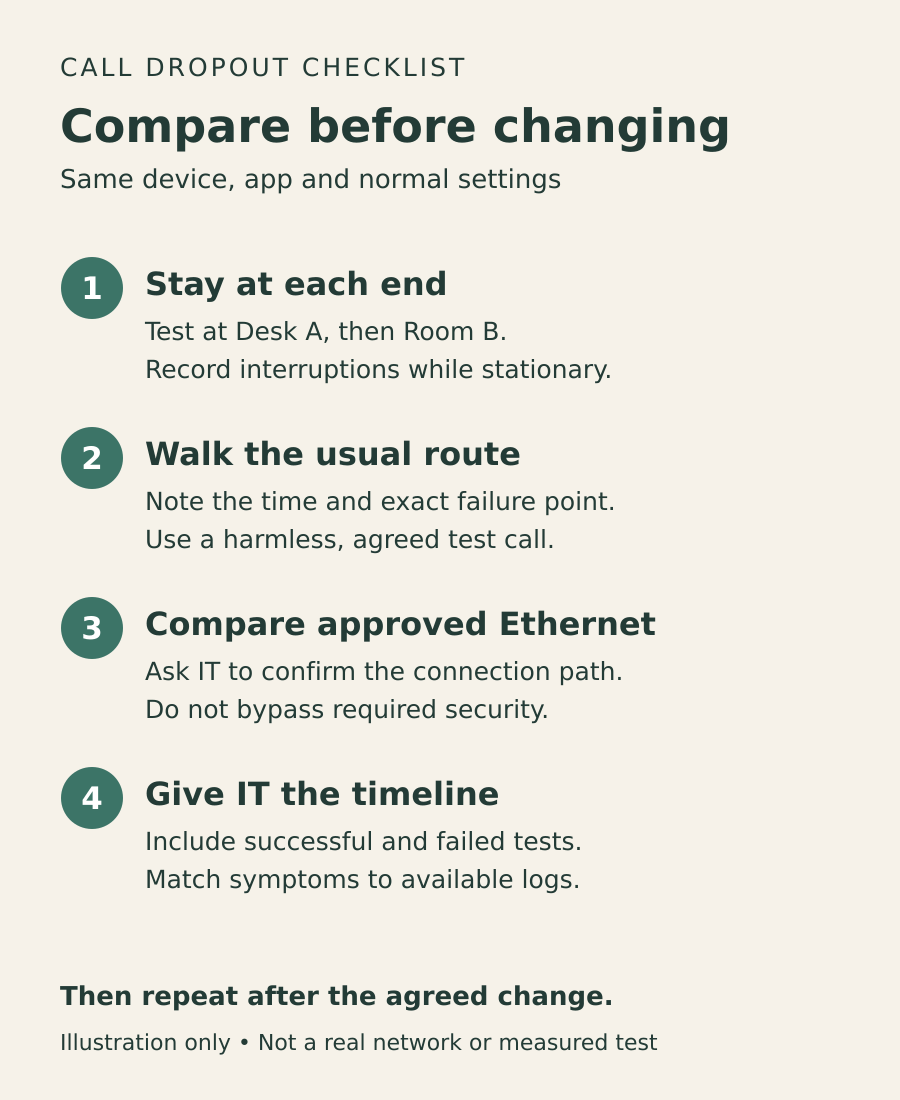
- Stay at the starting desk. Try a short test call without moving. Record whether it stays usable.
- Stay in the destination room. Repeat there. A problem while stationary needs attention too, even if the walk also fails.
- Walk the usual route once. Mark the point and time of any interruption. If safe and agreed, repeat to see whether the pattern recurs.
- Compare an approved wired connection, if available. Have IT confirm the device is actually using Ethernet for the comparison. A successful wired call narrows the investigation; it does not identify a particular access point as faulty.
Do not turn off a required VPN, bypass filtering, forget a managed network or join an unfamiliar hotspot just to make the test look better. If a comparison requires changing the working setup, ask IT to organise it.
Give support a timeline they can match to logs
Send the following through your normal private support channel:
- Device model, operating-system version and calling-app version. If IT needs the Wi-Fi adapter or driver version, let them collect it safely.
- Date, local time and time zone, plus the start and end of the test. A timestamp to the nearest second is useful when available.
- A simple route such as “Desk A to Room B”, the point where the problem occurred and whether the return route behaved differently.
- The symptom, duration and results of the stationary and wired comparisons, including tests that failed.
- Whether the VPN was connected, whether other people were affected and whether the same issue occurs on another approved device.
Fictional example: “At 10:14:20 AEDT, our test call lost outgoing audio near the corridor entrance for about three seconds. The call did not disconnect. The stationary test in Room B also had an audio gap. VPN stayed connected.” This is an example of a useful report, not a result from a customer or lab.
Network names, access-point identifiers, device identifiers and detailed floor plans belong in the authorised support record, not a public forum. Leave passwords, access codes and unrelated customer information out of the report.
What IT should verify before changing settings
The technician can match those times to the client’s association history, access-point transitions and available wireless or application logs. The investigation should establish whether a transition actually occurred and whether its timing matches the call problem, then check relevant signal, authentication and network evidence.
Roaming features such as 802.11k, 802.11r and 802.11v can assist compatible clients, but their availability and behaviour depend on the devices and network. Meraki specifically recommends checking device compatibility before enabling fast roaming. There is no universal transmit-power, channel or signal-threshold setting to copy into every office.
Where the evidence points to coverage or configuration, an authorised administrator should agree the change, its impact and a rollback plan. Osmicro’s IT infrastructure services cover the wider network context; a support request with the comparison results gives the investigation a useful starting point.
Verify the result on the same route
After an agreed change, repeat the same short comparisons and record the outcomes. Include a failed attempt rather than keeping only the best result. One successful call is encouraging, but it does not establish that an intermittent issue has disappeared.
If the main symptom is instead that particular websites partly load even while you stay at your desk, our guide to partial website loading and MTU checks covers that separate pattern. Do not change MTU merely because a moving call dropped.
Technical sources checked 4 November 2026. This is a documentation-based evidence-collection guide, not a claim that a particular device or network has been tested.
Feature image: AI-generated conceptual illustration; not a real workplace or measured network test.