
The backup report says the job succeeded. Could the team actually recover the right file and use it? A small restore test helps answer that question before a missing document becomes an urgent problem.
Start with a limited file-recovery exercise organised with the person responsible for your backups. The aim is to recover separate copies, check their contents and record what still needs work. It is not a reason to overwrite production files or experiment with live systems.
1. Decide what a useful result looks like
Choose a small set of authorised files, the backup date you need and a reviewer who understands the contents. A document, spreadsheet and PDF may be a sensible sample if those formats matter to your business. Use non-sensitive sample information where it can answer the question; do not copy real customer records just to make a demonstration look realistic.
Write down the expected revision and what the reviewer will check. For a spreadsheet, that may include particular sheets, formulas and linked workbooks. For a PDF, it may be the expected page count and a known section. Agree an acceptable recovery window before starting.
Also confirm that the files are actually in the selected backup. A synced file or a green availability tick is a different kind of evidence. Our guide to OneDrive status icons explains what those symbols can and cannot tell you.
2. Confirm the destination before anyone clicks Restore
Ask the authorised IT operator to prepare a clean, approved, access-controlled test destination that is isolated from production. A folder called “test” on a live system is not automatically isolated.
Before the restore starts, confirm that the documented procedure creates separate copies. It must not overwrite live files, alter live permissions, start synchronisation or trigger emails, payments or other integrations. Check who can access the destination and whether it has enough space.
Backup products offer different restore modes, and similar-looking buttons can have different effects. Follow the documentation for the actual product and version, with administrator steps handled by the authorised operator. If the destination or overwrite behaviour is unclear, stop and clarify it first.
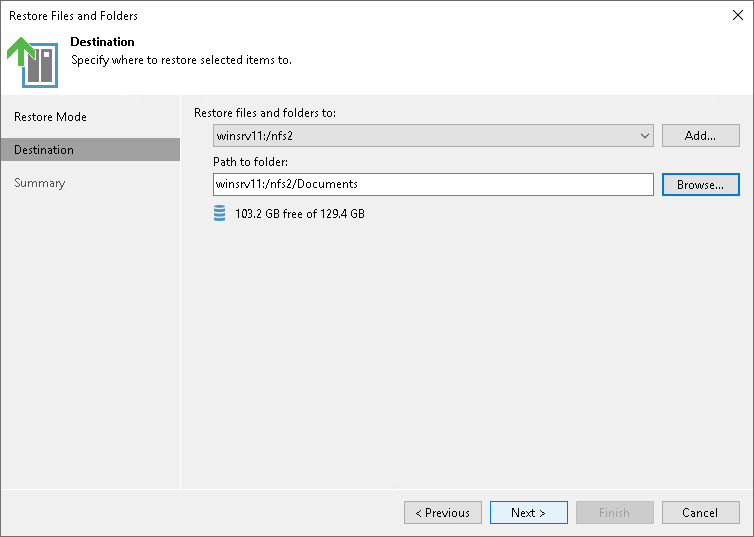
Keep the restored information protected as carefully as the original. If malware or an active incident is suspected, involve the incident-response or IT lead before running a routine test. Choosing a clean recovery point and safe environment needs its own assessment.
3. Open the recovered copies and check the contents
A filename in a restore-results list is only the starting point. Have the reviewer open the separate copies and confirm that the expected information is present and usable.
- Check the expected revision, pages, sheets and important content.
- Note files that will not open, missing items and unexpected errors.
- Check whether the sample depends on another workbook, application, font, licence or access permission.
- Record what was deliberately left untested, including live integrations and application behaviour.
For the initial read-only check, have IT keep macros and external data connections disabled. Do not choose Enable Content just to make a restored document work. Record any required active content as a separate, controlled test. Microsoft explains why active content needs careful handling.
Illustrative example: a reviewer can open the recovered PDF and document, but the spreadsheet needs another workbook that was not included. That would be a useful recovery gap to record. It would not mean the whole backup system failed, or that the entire business could recover. This is an example, not a reported customer test.
4. Record the result, including the inconvenient parts
Keep a short record with the backup timestamp, selected files, approved destination, operator, reviewer and checks completed. Note when the exercise started and when the reviewer confirmed the files were usable. If the backup tool reports its own restore duration, record that separately so it is not mistaken for the full recovery time.
Give each missing file, dependency or access problem an owner and a next step. Retest after the correction. Arrange approved cleanup of test copies when they are no longer needed, following your retention requirements.
If access, errors or missing dependencies prevent the check, Osmicro’s IT support team can help investigate before the exercise is marked successful.
5. Use the small test to plan the bigger one
Recovering a few files does not establish that a server, business application or whole organisation can recover within its required time. It also does not prove a compliance level.
ASD’s Australian Cyber Security Centre describes coordinated disaster-recovery exercises that restore data, applications and settings to a common point in time, taking dependencies into account. Your wider exercise should include the identities, software, configuration and connected services needed to resume work.
Use the small file test as evidence for that planning, with its limits clearly stated. Osmicro’s backup and disaster recovery services cover the broader recovery conversation.
Quick checklist
- Agree the sample, backup date, expected contents, reviewer and recovery window.
- Confirm an approved isolated destination and a separate-copy procedure.
- Stop if live data, permissions or integrations could be affected.
- Open the recovered copies and record content and dependency checks.
- Assign fixes, retest gaps and arrange approved cleanup.
- Plan the broader recovery exercise rather than treating a few files as proof of complete recovery.
Sources
- ASD/ACSC: Guidelines for system management, September 2026
- NIST/NCCoE: Protecting Data from Ransomware and Other Data Loss Events
- Microsoft Support: Protect yourself from macro viruses
- Veeam Backup & Replication 13: Specify Destination for File Restore
Sources checked 15 October 2026. This guide describes a proposed limited exercise; no customer restore or measured recovery result is claimed. The product screenshot is from Veeam’s documentation, and the feature image is original conceptual artwork.