
When a supplier needs one document, start by sharing that document. Sending a link to the surrounding folder can expose more material than the supplier needs, especially if new files are added later.
This checklist is for Microsoft 365 work or school accounts using OneDrive or SharePoint. The choices you see depend on your organisation’s settings and the file’s protection. Confirm that external sharing is allowed for the material before you begin.
Choose the smallest useful item
Open the file and make sure it contains only the material you intend to share. Check comments, tracked changes and extra pages as well as the visible opening page. If the recipient only needs a final copy, an approved PDF may be more suitable than the working document.
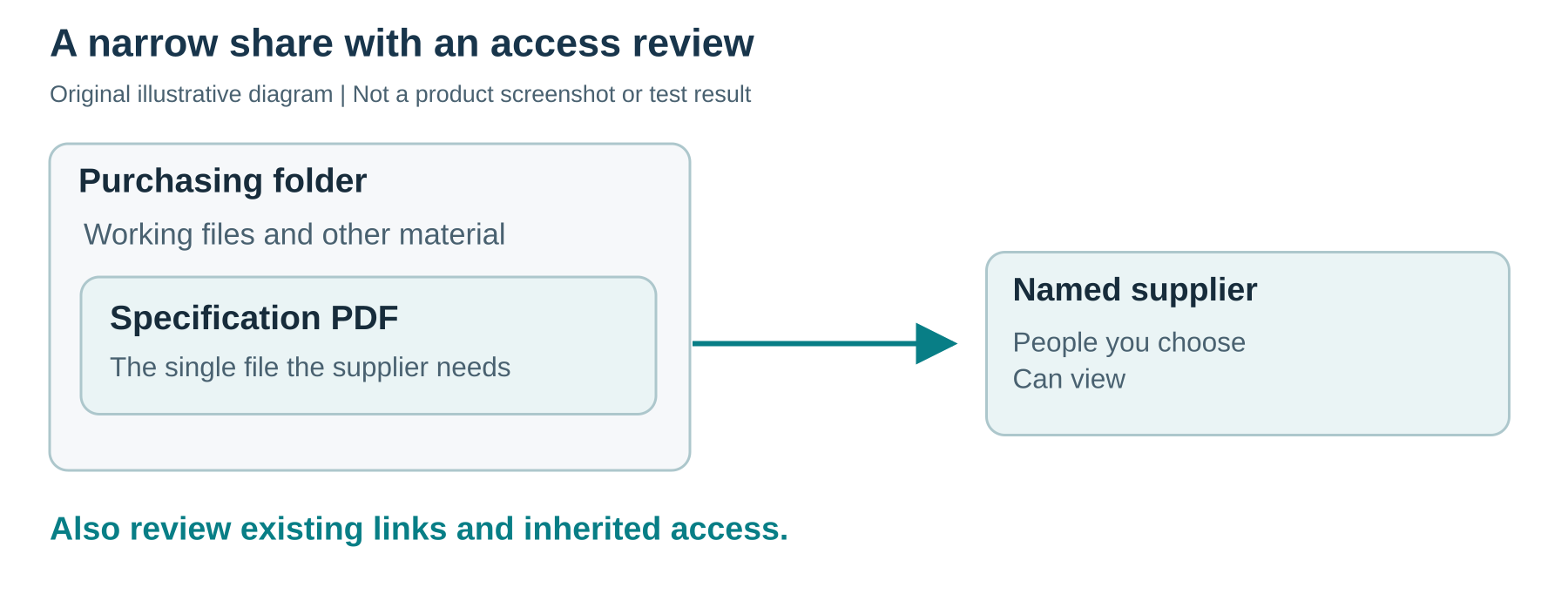
Illustrative example: a supplier needs a specification PDF from a purchasing folder. Sharing that PDF avoids making the wider folder the starting point.
If you are checking the file in Windows, our guide to OneDrive status icons and offline availability explains the sync symbols. A file’s sync status does not tell you who has permission to open it.
Name the recipient and check the permission
- Select the intended file and open Share.
- Review Link settings before copying or sending the link. Choose People you choose, sometimes labelled Specific people, then select Apply.
- Add and verify the intended business email address. For reading only, confirm Can view. Give editing access only when the person needs to change the shared material.
- Check the audience and permission once more, then use Copy link and send it through your approved communication channel.
The exact controls can vary. Microsoft’s current sharing instructions show the link settings and recipient fields.
A Specific people link is tied to the named recipients. Forwarding it does not grant an unrelated recipient access through that link. An Anyone link can be used by whoever obtains it, so it is unsuitable when you need to control the audience. A People in your organisation link does not work for external guests. People with existing access does not grant new access.
Can view is not a promise that the recipient cannot download or retain the information. Microsoft offers separate download restrictions in some configurations. Editing a folder can allow substantial changes to its contents, including deletion. If the document is confidential, check the available protection with your IT provider before sharing. Leave sensitivity labels and organisational restrictions in place.
Review access that already exists
A newly restricted link does not cancel permissions granted elsewhere. In Manage access, review people and links and check whether access comes from a parent folder or SharePoint site. Someone may still have access through that other route.
Be careful when changing inherited permissions: a parent-level change can affect other files and people. If the access list is unclear, ask the owner or IT administrator to check it rather than removing permissions at random. Osmicro’s IT support service is a route for help with access and cloud-file problems.
Make the handover easy to verify
Tell the recipient which document you have shared and which email address should be used to open it. Ask them to confirm they can open the intended file and have the right level of access. Opening the link yourself as the owner does not verify the recipient’s experience.
The sign-in or verification flow depends on your organisation and Microsoft configuration. If access fails, check the invited address and permission with IT; do not switch to an Anyone link simply to get around the problem.
October 2026 note: Microsoft is retiring the older SharePoint one-time-passcode flow for commercial tenants during this month. Microsoft Entra B2B email one-time passcodes are not being retired. If a previously working named-person link stops opening for a guest, have the administrator check the current external-sharing transition guidance and whether a matching guest account exists. This is an access issue to investigate, not a reason to broaden the link.
After a short engagement ends, review whether the recipient still needs access. Remove the relevant access through the approved process, then check other links or inherited permissions that may remain. Removing a link does not retrieve copies already downloaded. A clear file name, a named recipient and a deliberate permission make this review much easier.
Before you send the link
- Check the full document, including comments and tracked changes.
- Share the smallest appropriate item.
- Use People you choose or Specific people when restricting the audience.
- Verify the recipient’s address and choose Can view unless editing is needed.
- Review existing and inherited access.
- Confirm the recipient can open the file, then review access when the work ends.
Sources
Microsoft guidance checked on 11 October 2026. Interface labels and available options may differ by account and organisational policy.