
A QR code is convenient. It isn’t proof that the person asking you to scan it is trustworthy. Before you follow an unexpected QR code, check the request through a route you already trust.
This matters when a message says your work account will expire, a delivery needs another payment, or a document can only be opened on your phone. A believable reason and a familiar logo can make a rushed decision feel routine.
Start with the request, not the picture
Ask whether you expected this action. If a colleague supposedly sent it, contact them using your normal work chat or a previously saved number. Don’t use a new phone number printed beside the code as your only check.
For an account warning, open the provider’s genuine app or your established bookmark instead. Check the account there. If the warning can’t be independently confirmed, stop and ask your usual support contact.
Fictional example: “Your mailbox closes in 30 minutes. Scan to keep access.” Rather than testing the code, open your usual mail service and ask IT through your established channel.
If the code is on a sign or invoice
Look for a sticker placed over another code, damaged printing or details that don’t fit the setting. These are reasons to pause, not proof that a code is genuine or fake.
Before paying, independently verify the business, the purpose and the amount. A payment screen opening successfully doesn’t establish that the intended business receives the money. If in doubt, use a verified alternative payment route.
Check the destination before continuing
If your phone displays a link preview, inspect the full address before opening it. Watch for spelling substitutions and unrelated domains. If a shortened address conceals the destination or the preview is unclear, don’t guess.
An address check is useful but not a guarantee. A familiar-looking page can be copied. Use your known app or bookmark rather than entering credentials into an unexpected sign-in screen reached from a message.
Don’t install an app, permit remote access or provide an authentication code just because the page instructs you to. Stop and verify the request independently.
Already scanned it?
Be precise about what happened. Seeing a preview, opening a page, entering a password, authorising access and installing software are different events. A scan alone doesn’t prove that an account or device has been compromised.
Stop interacting and tell your known IT contact what you did and when. Don’t include passwords, verification codes or payment-card details. If you entered account credentials or approved access, contact your IT team or account provider promptly through a trusted support route. If money or financial details may be affected, call your bank immediately using a trusted number.
Make the safe route easy for staff
Agree where unusual requests should be reported and which trusted route staff should use to verify them. Osmicro’s cyber security awareness training can help make this a habit.
For an unexpected file invitation from a familiar sender, see our guide to checking SharePoint sharing emails. The delivery method changes; the need to verify the request doesn’t.
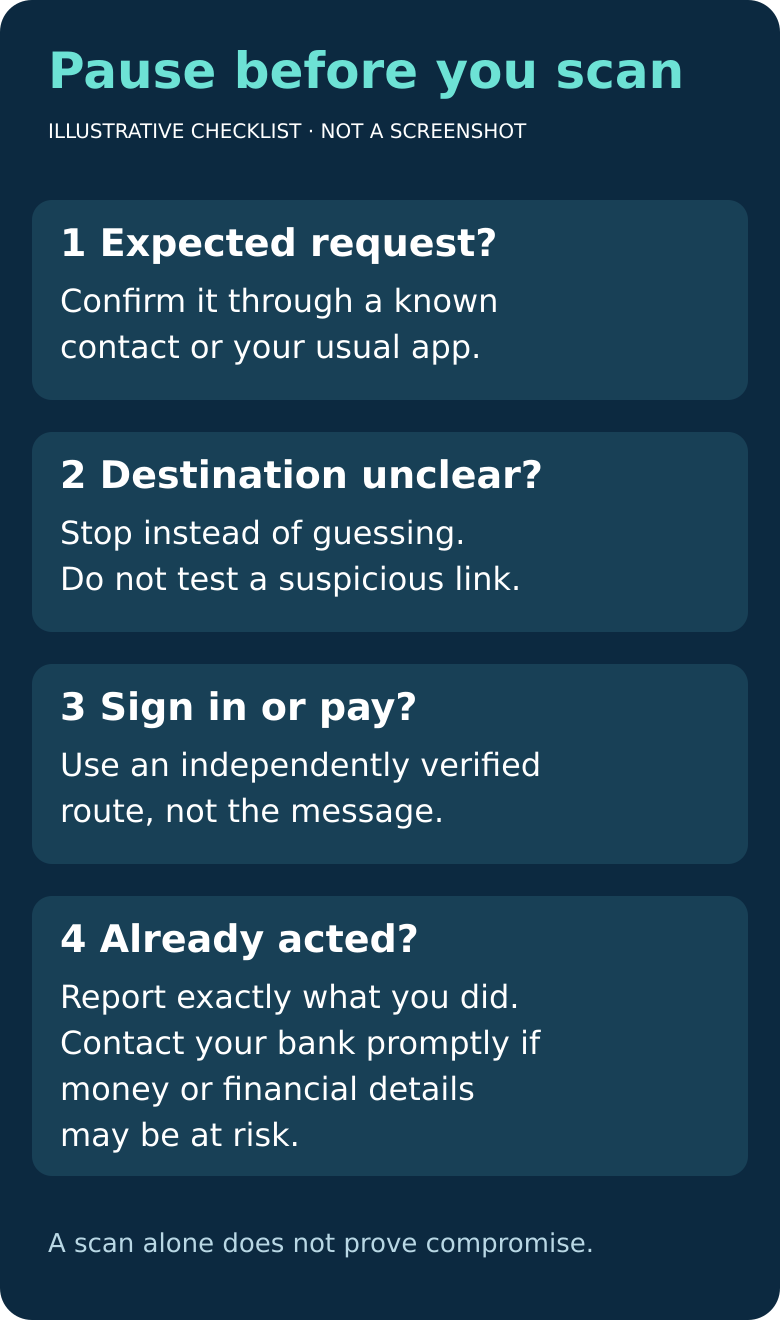
Quick check
- Expected request? Confirm it through a known route.
- Unclear destination? Stop instead of guessing.
- Unexpected login, payment or installation? Verify independently.
- Already acted? Report the exact action promptly.
For further guidance, see the Australian Signals Directorate’s phishing advice.