
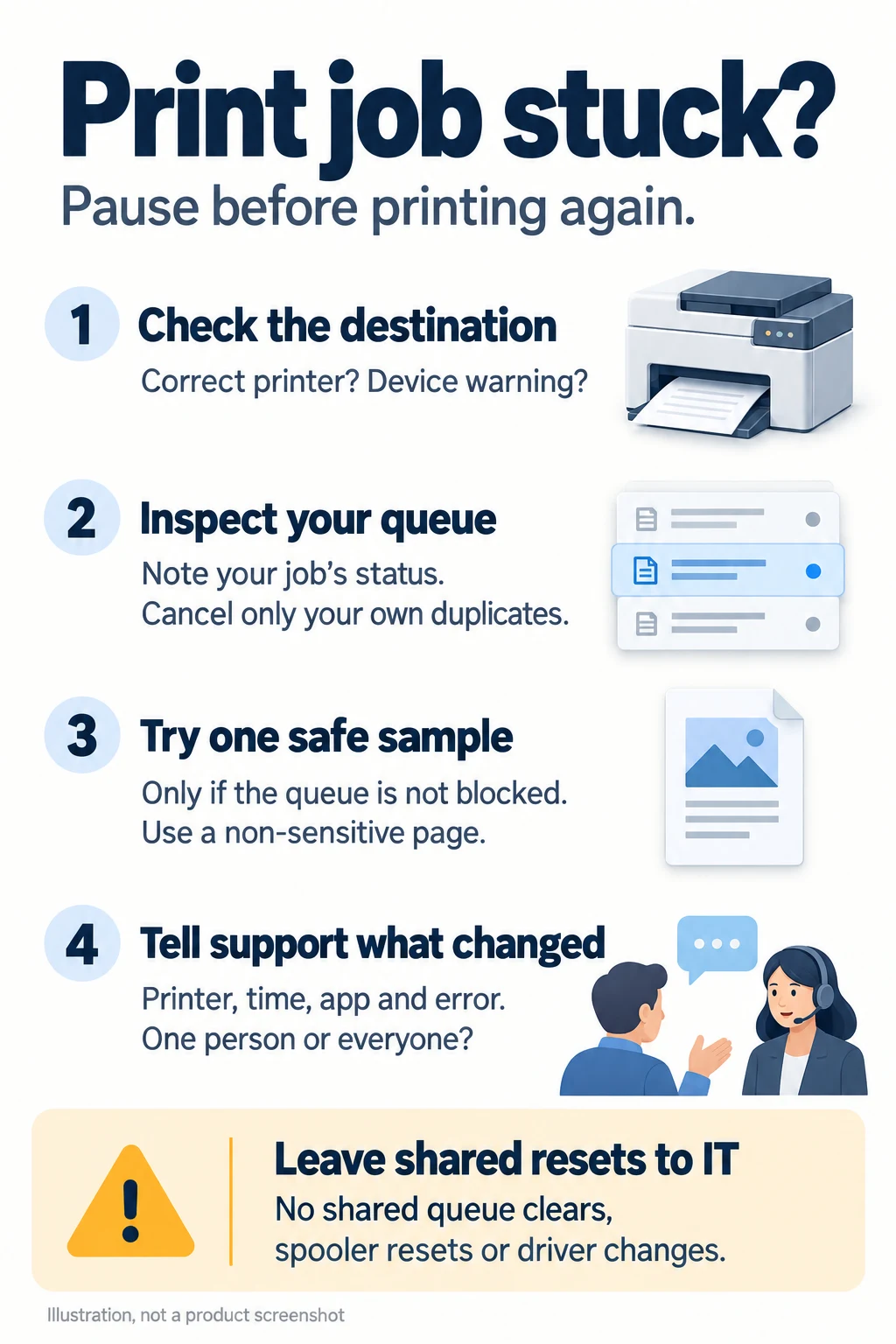
If a document will not print, stop sending extra copies. Check the selected printer, look at the queue and try one small, non-sensitive sample. The useful question is whether the failure follows one file, one computer or the shared printer.
This guide covers first checks for office users on Windows 11. It does not require administrator access. Company-managed printing and secure-release systems may work differently.
Start with the printer and the destination
Read the printer’s display before changing anything on your computer. Note a paper, cover, consumable or other visible warning. Follow your workplace’s normal procedure for loading paper or reporting a fault; do not force open a mechanism or reach into a hot printer.
In the app’s print window, check the full printer name and location. A similarly named queue, an old installation or a PDF destination can explain why nothing appears where you expect it. If your workplace uses badge or PIN release, check its normal release process.
Do not restart a shared printer just because your document has stalled. Someone else may be printing, scanning or waiting for a job.
Look at the queue before trying again
On Windows 11, open Settings → Bluetooth & devices → Printers & scanners. Select the intended printer and choose Open print queue. Microsoft documents this queue route.
Find your own request by its document name and submission time. Record its status, such as an error or a pending cancellation, and whether other jobs appear to be waiting too. A status label is a clue; it does not identify the cause on its own.
If you submitted duplicates, cancel only your own unwanted copies that you are authorised to cancel. Wait for the queue to reflect the change. If a request will not disappear, stop rather than repeatedly pressing Cancel or Print.
Do not cancel another person’s document. Avoid sharing a screenshot that exposes other users’ names or confidential filenames. A short written description is often enough.
Try one harmless sample
If there is no obvious device warning and the queue is able to accept work, open a text editor such as Notepad. Type a short line such as “Printer test: no confidential information”, select the same printer and send one copy.
Use a blank sample you created for this purpose. Do not use a patient record, invoice, staff document or customer file as a test. If the queue is visibly blocked by an earlier job, report that first instead of adding more requests.
Microsoft’s printing troubleshooting uses a text-editor comparison to help narrow application-related failures. You are looking for a difference you can report, rather than trying to prove that an entire printing system is healthy.
Read the result carefully
- The sample prints but the original file does not: focus the next investigation on that document or the app that sent it. Record the file type and app name. Keep the original intact, and avoid uploading it to an online repair or conversion site.
- Your computer cannot print the sample, but a colleague can already print through the same approved route: report that difference. It points towards your computer or its printing path, but does not establish a driver fault.
- Several people are affected, or the printer shows a warning: report the wider impact. The shared queue, connection and device need investigation. Ask about existing observations before asking everyone to send another test.
- The job leaves the Windows queue but no page arrives: check the intended output location and your normal secure-release process. Disappearing from the queue alone is not proof that a page printed.
These comparisons guide the next check. Intermittent faults and different print routes can make a single successful test misleading.
Leave wider resets to the support team
Clearing a shared queue can discard other people’s pending work. Restarting a print service can interrupt more than your application, and restarting the service on a print server can affect other users and queues. Removing drivers can change printing for other apps or devices.
Microsoft publishes wider recovery procedures, but they are not the first step in this office-user checklist. If normal cancellation fails, let the authorised support team identify the affected computer or server, check the impact and coordinate recovery.
Do not delete spool files, remove drivers, change printer ports or run reset commands from a search result. Report what you found so the technician can choose the smallest appropriate intervention.
Give support a useful handover
Include the printer name and location, approximate time, app and file type, visible error text, queue status, and whether the sample or other users’ existing jobs worked. Explain whether printing is blocked for one person or the team, and mention any work that is time-critical.
Avoid attaching the original document unless support needs it and your organisation permits sharing it. Once printing returns, check your pending requests before resending so an old job and a new copy do not both print.
Osmicro’s IT support services can help investigate recurring printer and workstation issues. For an unresolved shared printing problem, send the observations above through your existing service desk channel.
Related reading
If your problem is a catalogue or PDF link that will not open before you reach the print step, see Osmicro’s guide to website links that will not open.
Guidance checked against Microsoft documentation on 16 November 2026. This is a general triage checklist, not a report of a tested repair.