
If Windows 11 says Restart required, the update still needs a restart. Pick a time that works for your team, save your work, then check Windows Update and your usual apps after you sign back in.
This guide is for your own work PC. If the reminder is on a server, shared host or PC that others rely on, leave the restart to the administrator. Follow your organisation’s instructions where they differ.
1. Check what Windows is asking for
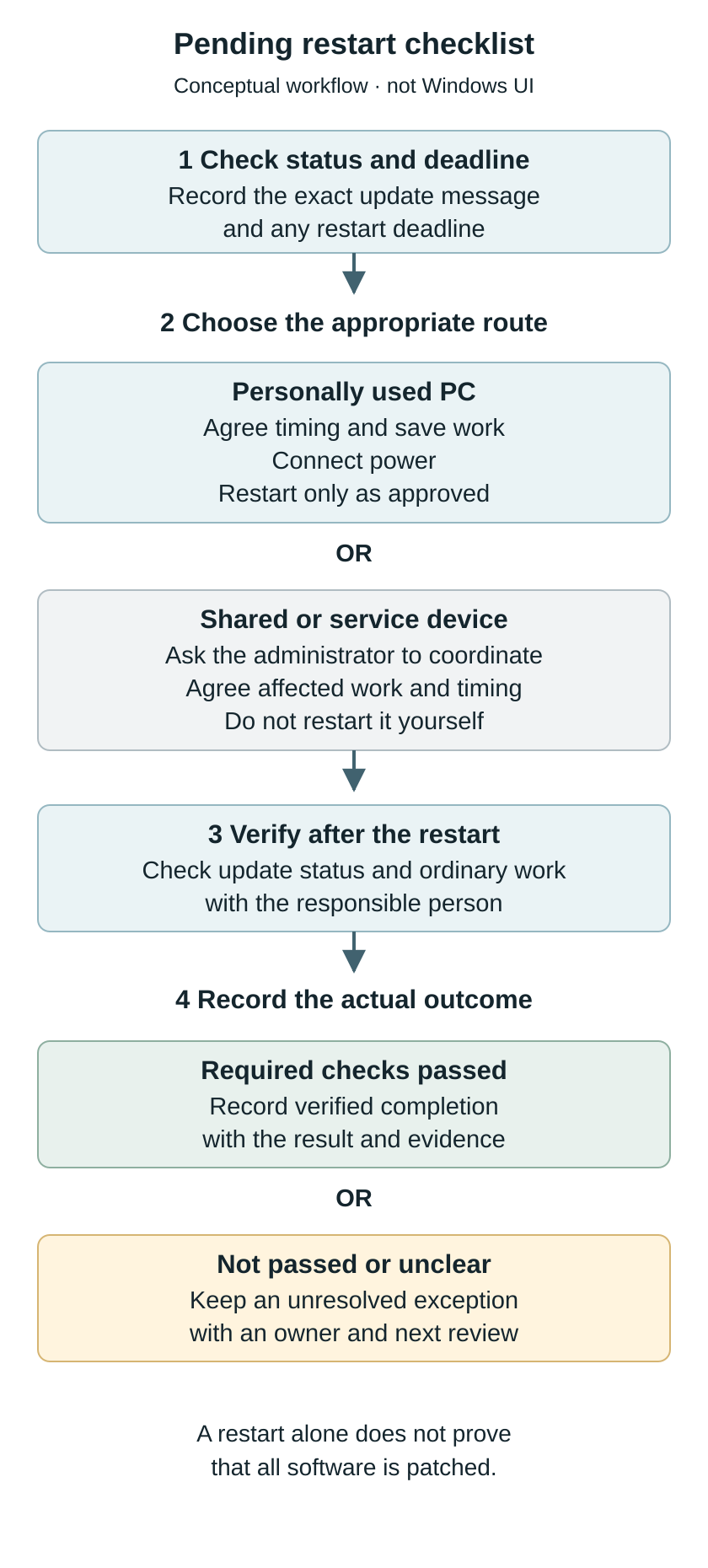
Open Start > Settings > Windows Update. Note the message, the update name or reference if shown, and any restart deadline. Downloaded or installed does not always mean finished: some updates need a restart to finish applying. The Australian Signals Directorate recommends verifying that patches have applied, including those waiting on a reboot.
2. Choose a time that won’t interrupt work
Check for meetings, uploads, unsaved forms or work someone else is waiting on. If Windows offers Schedule the restart, choose an approved gap with time to sign back in and check your work. See Microsoft’s Windows Update guidance for scheduler and update history steps. Managed PCs can have a restart deadline that takes precedence over active hours. If it clashes with important work, contact IT before it arrives.
If your team regularly struggles to find a restart window, Osmicro’s managed patch management service can help put an agreed process in place.
3. Save your work and restart
Save your files, finish or safely stop running tasks, and close your apps. Plug in your laptop. If Windows shows Update and restart, select it at the agreed time. Closing the lid, sleeping or locking the PC won’t complete the restart. Don’t force the power off while Windows is applying the update. If you see an unexpected recovery screen, admin prompt or error, contact IT rather than changing settings or trying repair scripts. Microsoft’s Windows update troubleshooting guide covers what to check if the update fails.
Saving or syncing a file is only one part of recovery. See our guide to what file sync, version history and backup can each recover.
4. Verify the update and a normal work task
After signing in, return to Settings > Windows Update and read the status. Open Update history to look for the relevant update and the recorded result. Then open a usual work app and check that you can reach the files or systems you need. A successful sign-in alone doesn’t prove the update applied, and the Windows Update status doesn’t tell you whether every third-party app is patched.
5. Tell IT if it’s still pending
If Windows still asks for a restart or shows a failed update, keep the issue open. Give IT the device reference, update name or KB number if shown, the restart time, and the exact status afterwards. If work prevents the restart, agree who owns it and when to check again. For help coordinating a restart or interpreting an unclear result, contact Osmicro IT support.