
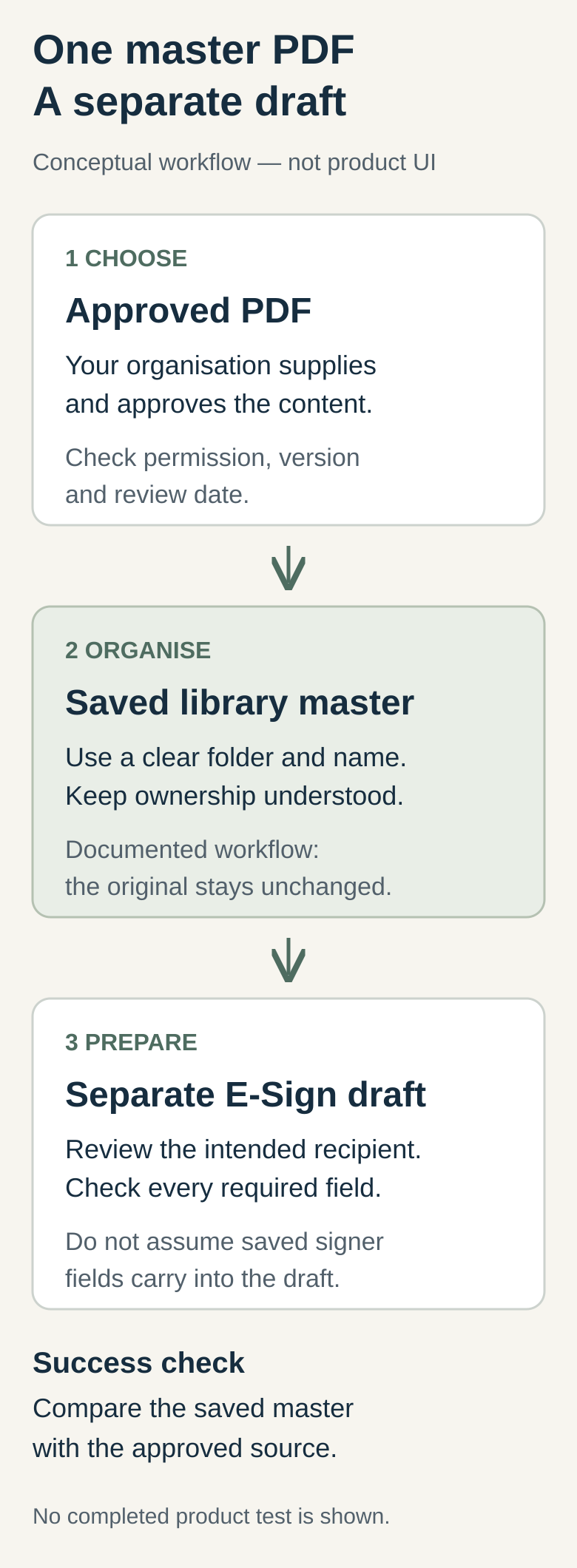
Feature illustration: AI-generated conceptual illustration of a reusable master PDF and separate working copy. Not a product screen.
When you need the same PDF again, start by confirming that it is the current approved copy. An attachment from an old email or a completed document from a previous job is a poor substitute for a clearly identified master.
Vukorix Document Library stores reusable PDFs in folders and provides a starting point for fresh E-Sign drafts. Its documented workflow leaves the saved library copy unchanged. Document Library overview.
We operate Vukorix through Osmicro Networks Pty Ltd. This is our product guide, rather than an independent review. Operator information.
Choose and check the master PDF
Start with one document you use regularly. Ask its owner to confirm which version is current and suitable for the intended job. “Approved” means approved through your organisation's process. Uploading a PDF does not establish that its content or signing method meets your requirements.
Use only PDFs your organisation has permission to store and reuse.
Read every page before adding it. Look for old names, completed answers, comments or other details carried over from a previous job. Use a clean master.
Give the PDF a recognisable name and a consistent version reference. Training-demo-v1-2026-11-03.pdf is an illustrative filename, not a supplied form. Record the document owner, approval and next review date in your existing register if needed. These are suggested working practices, not claims about built-in versioning or review-date features.
Choose a simple folder structure
Open Document Library with your named, authorised account and check which controls are available. If a required control is missing, ask your service owner rather than borrowing another person's login.

Keep the folder structure small. Organise documents by the distinction people actually use to find them, such as service or document purpose. Avoid keeping several apparently current copies in different folders.
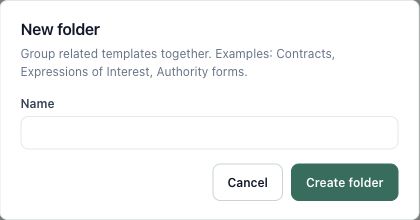
To create a folder:
- Select New folder.
- Enter the folder's Name.
- Select Create folder.
Upload the approved PDF
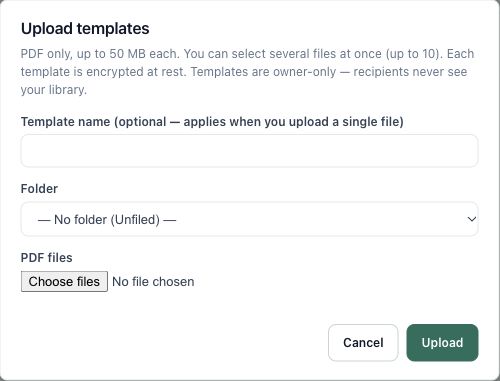
Select Upload template to open the Upload templates dialog. It accepts PDFs only, up to 50 MB per file and up to 10 files in one upload. Starting with one makes the first check simpler.
Choose the PDF, use the optional name when uploading a single file if helpful, and select its intended folder. Check the file selection before choosing Upload. Use Cancel if you need to return to the source document first.
After uploading, locate the saved entry and select Preview. Confirm that the expected pages are present and that you selected the correct version. Do this before using the PDF for a new job.
Create a separate signing draft
Find the approved PDF in its folder or through template search. Check the filename and preview the content, especially where several documents have similar names.
Select Use template when you are ready to create a separate E-Sign draft. Vukorix describes the result as a fresh draft based on the saved PDF, with the library source unchanged. Treat the draft as the document for the current job and keep the master for reuse. Reusable PDF workflow.
Review every draft before sending
Check the intended recipients and their details in the new draft. Vukorix E-Sign supports assigning fields to recipients, so review which person should complete each field. E-Sign workflow.
Do not assume that using a saved PDF preserves or discards every field or signer assignment. Inspect the actual starting state of each new draft, then check all pages for missing fields, incorrect assignments and details belonging to another job.
Resolve any uncertainty about the document or its signing requirements with the responsible person before sending. For an initial workflow check, use a harmless fictional training PDF and leave the draft unsent until the checks are complete and any test-send is authorised.
Check the saved master and keep it current
After preparing the separate draft, return to the library and preview the saved source. Compare it with the approved PDF: its pages and content should remain unchanged, without the draft's job-specific changes. Verify that expected result in your own workflow rather than assuming the preparation step succeeded.
Give one named person responsibility for reviewing the master. When it changes, approve the replacement, identify the current version and take superseded copies out of everyday selection through the supported process. Meet your retention requirements and do not assume replacing a master updates existing drafts.
Use supported named-user access for the library. Our account ownership and recovery guide explains how to record responsibility and an approved recovery route.
Processing and pricing
Document Library and E-Sign use Standard secure processing, with encryption in transit and at rest. Authorised Vukorix systems can process document contents where the selected feature requires it. These workflows are not Private mode or end-to-end encrypted. Security architecture.
Public pricing checked on 3 November 2026: Solo is A$12.99 a month including GST for one owner; Business is A$19.99 a month including GST for the owner plus three team members. Both include Document Library and E-Sign. Plan and trial limits apply. The seven-day trial requires no credit card and does not automatically become a paid subscription. Current pricing.
For broader context, read our Vukorix introduction. For help with the workplace IT processes around document ownership, see Osmicro IT Support.